


The evolution of file sharing has been nothing short of transformative. Gone are the days when sharing a document meant a tedious cycle of saving files to local storage, struggling with email attachment size limits, or even worse, physically transferring data via USB drives. These methods were not only inefficient but also prone to errors, version control nightmares, and significant security risks. The constant frustration of oversized files bouncing back from email servers or the anxiety of losing critical data due to a forgotten flash drive is now a distant memory for many.
Today, thanks to innovative cloud-native technologies, managing and sharing digital content has become remarkably seamless. Platforms like Google Drive have revolutionized how individuals and organizations interact with their files, offering unparalleled ease in sharing documents, spreadsheets, presentations, and more, both internally and externally. This shift has empowered users with granular control over their shared content, allowing them to define specific permissions for each collaborator—whether they can simply view, add comments, or actively edit the file.
Building upon the robust foundation of Google Drive, **Google Shared Drives** (formerly known as Team Drives) represent a significant leap forward in collaborative file management. This sophisticated feature elevates file ownership from an individual to an entire team, fundamentally changing how groups access, store, and organize their collective knowledge. Shared Drives ensure that all team members have immediate and consistent access to vital information, fostering a truly collaborative environment where content ownership is shared and perpetuated, independent of any single individual’s account. This collective digital workspace is designed to keep projects moving forward efficiently, securely, and without interruption, making it an indispensable tool for modern businesses striving for optimal productivity.
Unpacking the Core: My Drive vs. Google Shared Drives
Understanding the fundamental distinction between My Drive and Shared Drives is crucial for optimizing your team’s workflow within Google Workspace. Google Drive essentially offers two distinct spaces for file storage, each tailored to different ownership and collaboration models. My Drive is your personal digital locker, designed for files and folders that you personally own. While you can certainly share content from My Drive with others, either individually or through link sharing, the ultimate ownership and control remain with you. If you were to leave the organization, those files would typically leave with your account or require manual transfer, potentially creating data gaps.
In stark contrast, files stored within a Shared Drive belong collectively to the team or organization, not to any single individual. This crucial difference ensures that every member of that specific Shared Drive automatically gains access to all its contents. This model is ideal for information intended for broader consumption within a department, a project group, or even the entire organization. The enduring nature of Shared Drives means that even if a team member departs, their contribution remains accessible and fully functional for the remaining team, guaranteeing seamless project continuity and preserving institutional knowledge. This makes Shared Drives the backbone of effective, long-term team collaboration.
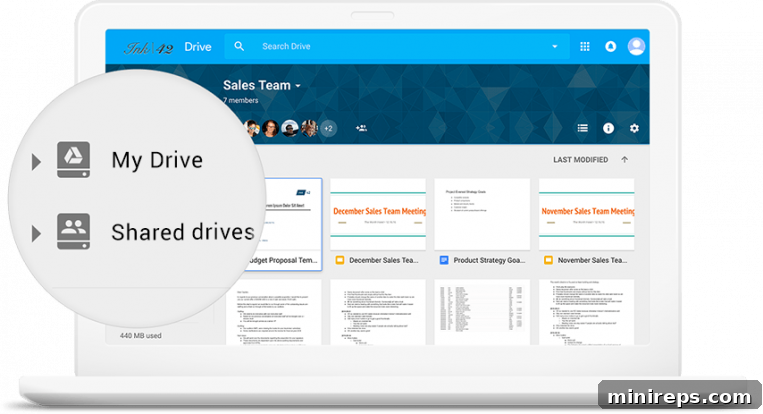
The shared ownership model inherent in Google Shared Drives provides a significant advantage for businesses. Imagine a critical project document created by a team member who then goes on an extended leave or leaves the company. In My Drive, that document’s accessibility might become an issue, potentially halting progress. With Shared Drives, the file remains exactly where it is, owned by the team, allowing continuous access and collaboration for all authorized members. This ensures that organizational information and ongoing projects are never tethered to a single employee’s account, safeguarding against disruptions and bolstering business continuity.
Beyond simple accessibility, Shared Drives simplify administrative tasks. IT administrators can manage permissions at the drive level, ensuring consistent access controls across all team members and reducing the overhead of managing individual file shares. This centralized management also enhances data security, as policies and restrictions can be uniformly applied, minimizing the risk of unauthorized access or data loss. By clearly defining who has access to which Shared Drive, organizations can maintain a high level of control over sensitive information, a critical aspect of modern data governance.
Maximizing Collaboration: Best Practices for Google Shared Drives
To truly harness the power of Google Shared Drives and transform your team’s collaboration, adopting a strategic approach is essential. Implementing best practices can prevent chaos, enhance productivity, and ensure that your digital workspace remains organized and efficient.
1. Establish a Clear and Consistent Structure
Without a well-defined structure, a Shared Drive can quickly devolve into a disorganized mess, making it difficult for anyone to find what they need. When multiple individuals are contributing files and folders, a systematic approach is non-negotiable. Many successful organizations, including 101domain, advocate for creating Shared Drives that are intuitively segmented by teams, departments, or specific projects. This initial organization sets the stage for efficient information retrieval and reduces duplication.
- Logical Folder Hierarchy: Design a clear, logical folder structure from the outset. Consider categories like “Current Projects,” “Archived Projects,” “Marketing Materials,” “HR Documents,” “Financial Reports,” or client-specific folders. The structure should be intuitive enough for new team members to navigate easily.
- Standardized Naming Conventions: Implement consistent naming conventions for files and folders. This could include project codes, dates (YYYYMMDD), version numbers, or author initials. For example, “ProjectX_Report_Q3_v2.docx” is far more descriptive than “Report.docx”. Consistent naming helps with searchability and quick identification.
- Designate a Drive Manager: For larger or more active Shared Drives, appointing a “Drive Manager” or “Admin” can be incredibly beneficial. This individual would be responsible for maintaining the structure, archiving old content, and ensuring adherence to established guidelines, acting as a steward for the team’s collective digital space.
2. Master the My Drive vs. Shared Drive Decision
Google Drive offers the flexibility to choose where your files reside, based on their ownership and intended audience. Making the right decision between My Drive and Shared Drive is key to efficient file management. A simple rule of thumb can guide you: think about the primary ownership and the longevity of the file’s relevance to the team.
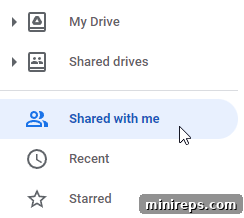
If you’re working on a personal draft, a confidential document, or something that is solely for your eyes and has no immediate team relevance, saving it to My Drive is generally the appropriate choice. Even then, you retain the ability to share these My Drive files with specific team members as needed. Collaborators can easily locate these shared files later by navigating to the “Shared With Me” section in their Google Drive interface, ensuring that individual work can still contribute to team efforts without residing directly in a shared space.
However, if a file is intended for ongoing team collaboration, requires consistent access by most or all members of a particular project or department, or shares a common theme with other existing files in a Shared Drive, then it unequivocally belongs in that Shared Drive. This ensures collective ownership, continuous accessibility, and simplifies version control for the entire team. Thankfully, Google Drive makes transferring files between My Drive and Shared Drives incredibly simple, allowing you to adapt file locations as project needs evolve.
3. Seamless Workflow with Google Drive for Desktop Synchronization
For many users, working directly from their desktop environment offers unparalleled convenience and speed. Google Drive for desktop bridges the gap between your cloud storage and your local machine, allowing users to access and interact with their Shared Drives directly from their computer’s file explorer (e.g., Windows Explorer or macOS Finder).
With Google Drive for desktop, your entire Google Drive content, including both My Drive and Shared Drives, appears as if it were saved locally on your computer. This innovative solution intelligently streams files from the cloud, freeing up valuable disk space on your local machine and reducing network bandwidth consumption. You get the benefit of instant access without the burden of storing everything locally, leading to a faster-running Mac or PC. Any modifications you or your collaborators make to files in the cloud are automatically synchronized across all devices and the web interface, ensuring everyone always works with the latest version.
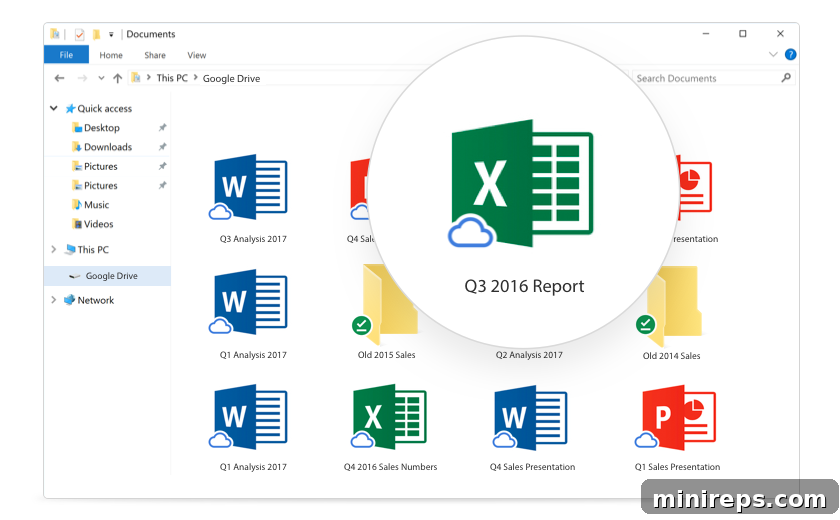
This synchronization capability is particularly advantageous for tasks involving large files, complex software, or when working offline. Users can confidently edit CAD drawings, video projects, or massive datasets with their preferred desktop applications, knowing that their changes will seamlessly update in the cloud once an internet connection is re-established. It combines the power of cloud collaboration with the speed and familiarity of local computing, enhancing productivity and ensuring a truly hybrid workflow.
4. Implement Robust Permission Management
One of the most powerful features of Google Shared Drives is its sophisticated permission system. Properly configured permissions are vital for data security and ensuring that only authorized individuals have the appropriate level of access.
- Manager: Has full control over the drive, including adding and removing members, deleting files, and changing settings. Ideal for team leaders or project managers.
- Content Manager: Can add, edit, move, and delete files within the drive. Suitable for most active team members who contribute content.
- Contributor: Can add and edit files. Good for team members who primarily create and modify content.
- Commenter: Can only view and add comments to files. Perfect for reviewers or stakeholders who need to provide feedback without altering content.
- Viewer: Can only view files. Best for broad distribution of finalized documents or informational resources.
Regularly review and adjust permissions as team roles change or projects evolve. Be particularly cautious with external sharing, utilizing Google Workspace’s controls to restrict sharing outside your organization when necessary. This proactive management minimizes security risks and maintains control over sensitive information.
5. Regular Maintenance and Archiving
Like any physical filing system, digital Shared Drives benefit from regular tidying. Over time, drives can accumulate outdated, redundant, or unnecessary files. Establish a routine for cleaning up and archiving content. Move completed project files to an “Archive” folder or a separate “Archived Drives” section. This process keeps active Shared Drives lean, searchable, and relevant, improving overall efficiency and reducing clutter that can hinder productivity.
6. Foster User Adoption and Provide Training
Even the most robust tools are only effective if users understand how to leverage them. Invest in training your team on how to use Shared Drives effectively, covering everything from proper file placement and naming conventions to understanding permission levels. Encourage best practices through internal guidelines and lead by example. A well-informed team is more likely to adopt the system consistently, leading to greater success and a more organized collaborative environment.
7. Leverage Advanced Search Capabilities
Despite the best organizational efforts, sometimes a file can still be elusive. Google Drive’s powerful search functionality is a secret weapon. Train your team to utilize advanced search operators, filtering by file type, owner, modification date, or even specific keywords within documents. Knowing how to effectively search can save significant time and frustration, complementing a good organizational structure by providing a reliable fallback for finding information quickly.
Beyond the Basics: The Transformative Benefits of Google Shared Drives
Implementing Google Shared Drives extends far beyond merely centralizing files. It introduces a suite of transformative benefits that profoundly impact organizational productivity, security, and continuity:
- Enhanced Collaboration & Real-time Co-editing: Shared Drives facilitate seamless real-time collaboration. Multiple users can work on the same document simultaneously, see changes as they happen, and communicate through comments, significantly accelerating project completion and fostering teamwork.
- Uninterrupted Business Continuity: By decoupling file ownership from individual accounts, Shared Drives ensure that critical documents and ongoing projects remain accessible even if a team member leaves the organization. This safeguards institutional knowledge and prevents costly disruptions, guaranteeing continuous operations.
- Superior Data Security & Centralized Control: Administrators gain granular control over access permissions at the drive level, allowing them to define who can view, comment, contribute, or manage content. This centralized management enhances data security, reduces the risk of unauthorized access, and simplifies compliance with internal policies and external regulations.
- Streamlined Workflows & Project Management: With all relevant project files housed in a single, accessible location, teams can streamline their workflows. Project managers can easily oversee progress, assign tasks related to specific documents, and ensure that everyone is working from the latest versions, reducing confusion and improving efficiency.
- Effortless Onboarding & Offboarding: New team members can be instantly granted access to all relevant historical and current project data simply by adding them to the appropriate Shared Drives. Conversely, when an employee departs, their access can be revoked swiftly without affecting the team’s access to their contributions, simplifying administrative overhead.
Integrating Google Shared Drives into Your Google Workspace Ecosystem
Google Shared Drives are not just standalone storage solutions; they are an integral part of the larger Google Workspace ecosystem. This seamless integration means that files stored in Shared Drives can be effortlessly opened, edited, and shared using familiar applications like Google Docs, Sheets, Slides, and Forms. You can initiate a Google Meet video conference directly from a document, schedule follow-up actions in Google Calendar, or discuss updates in Google Chat—all while collaborating on files residing in your Shared Drive. This interconnectedness creates a holistic, productive environment where information flows freely and tools work in concert to support dynamic team collaboration.
Experience the Power of Google Shared Drives with a Free Trial
Google Shared Drives are an exclusive feature available with Google Workspace Business Standard and Enterprise plans, designed to empower businesses with cutting-edge collaboration tools. To help you discover the immense value and efficiency that Shared Drives can bring to your organization, we’ve partnered with Google to offer you an opportunity to try Google Workspace for business free for one month. This trial provides full access to a comprehensive suite of productivity and communication applications, perfectly integrated to streamline your daily operations. Alongside the advanced capabilities of Shared Drives, you’ll gain access to essential tools such as a custom email address (e.g., you@yourcompany), Gmail, Calendar, Meet for video conferencing, Chat for instant messaging, Drive for cloud storage, Docs for word processing, Sheets for spreadsheets, Slides for presentations, and Forms for surveys and data collection. Take advantage of this offer to transform your team’s collaboration and elevate your business operations to new heights.
