


In today’s fast-paced digital landscape, effective collaboration and seamless document management are no longer luxuries but necessities for businesses of all sizes. At the heart of this transformation lies Google, the undisputed world’s largest website, a testament to its unparalleled reach and intricate data handling capabilities. It’s only natural that a tech giant of this magnitude has honed the art of sharing and organizing information, culminating in the powerful cloud-based ecosystem known as Google Workspace (formerly G Suite).
Google Workspace is more than just a collection of apps; it’s a comprehensive suite designed to empower productivity, communication, and collaboration. Within this robust ecosystem, Google Drive stands out as a pivotal tool, serving as the central hub for all your files and documents. Alongside applications like Docs, Sheets, Slides, Forms, and Meet, Google Drive provides the foundational storage and sharing infrastructure that fuels modern work.
For remote teams, in particular, Google Drive has become an indispensable asset. Its ability to transcend geographical boundaries and time zones, facilitating real-time interaction and secure access to information, makes it a true game-changer. This article will delve deep into the core functionalities of Google Drive, exploring its myriad benefits for businesses navigating the complexities of remote and hybrid work models. We’ll uncover why Google Drive is lauded as a collaboration hero and share our top best practices to help you maximize its potential for your organization.
Unlocking Potential: Top 3 Google Drive Highlights for Modern Businesses
Google Drive is engineered to simplify complex workflows and foster a more connected, efficient workplace. Let’s explore its standout features that make it an essential tool for every team.
#1 Google Drive Cloud Storage: Secure, Accessible, and Scalable
The concept of “the cloud” has revolutionized how we store, access, and manage data. Far from a nebulous concept, cloud storage refers to saving digital data in logically pooled virtualized resources rather than directly to local physical storage devices. When you move your data to Google Drive, you’re embracing a host of benefits, including significantly enhanced security, optimized performance, reduced infrastructure costs, and unparalleled collaboration capabilities.
Google Drive empowers you to upload and store a vast array of documents and files – including commonly-used formats like JPEGs, PNGs, PDFs, videos, and even proprietary software files – directly to the cloud. This liberates your local computer’s storage and provides the transformative ability to access your critical information anywhere, anytime, and from any device with an internet connection. Imagine the flexibility this offers for employees working remotely, on the go, or across different workstations.
When files are uploaded to Google Drive, they are meticulously stored in Google’s world-class, secure data centers. These facilities are fortified with state-of-the-art physical and digital security measures, including advanced encryption, multi-factor authentication, and robust disaster recovery protocols. This means that even if your personal computer, phone, or tablet is lost, stolen, or damaged, your valuable files remain safe and readily accessible from any other authorized device. Furthermore, your files are inherently private by default; you retain complete control over who sees your content, ensuring data privacy and compliance.
Beyond security and accessibility, Google Drive’s cloud storage offers immense scalability. Businesses can easily expand their storage capacity as their needs grow, eliminating the need for costly hardware upgrades or complex IT infrastructure management. This “pay-as-you-grow” model ensures that resources are allocated efficiently, contributing to significant operational savings over time. Moreover, with Google’s global network, data retrieval is incredibly fast and reliable, ensuring that performance is never compromised, even for large teams accessing files concurrently.
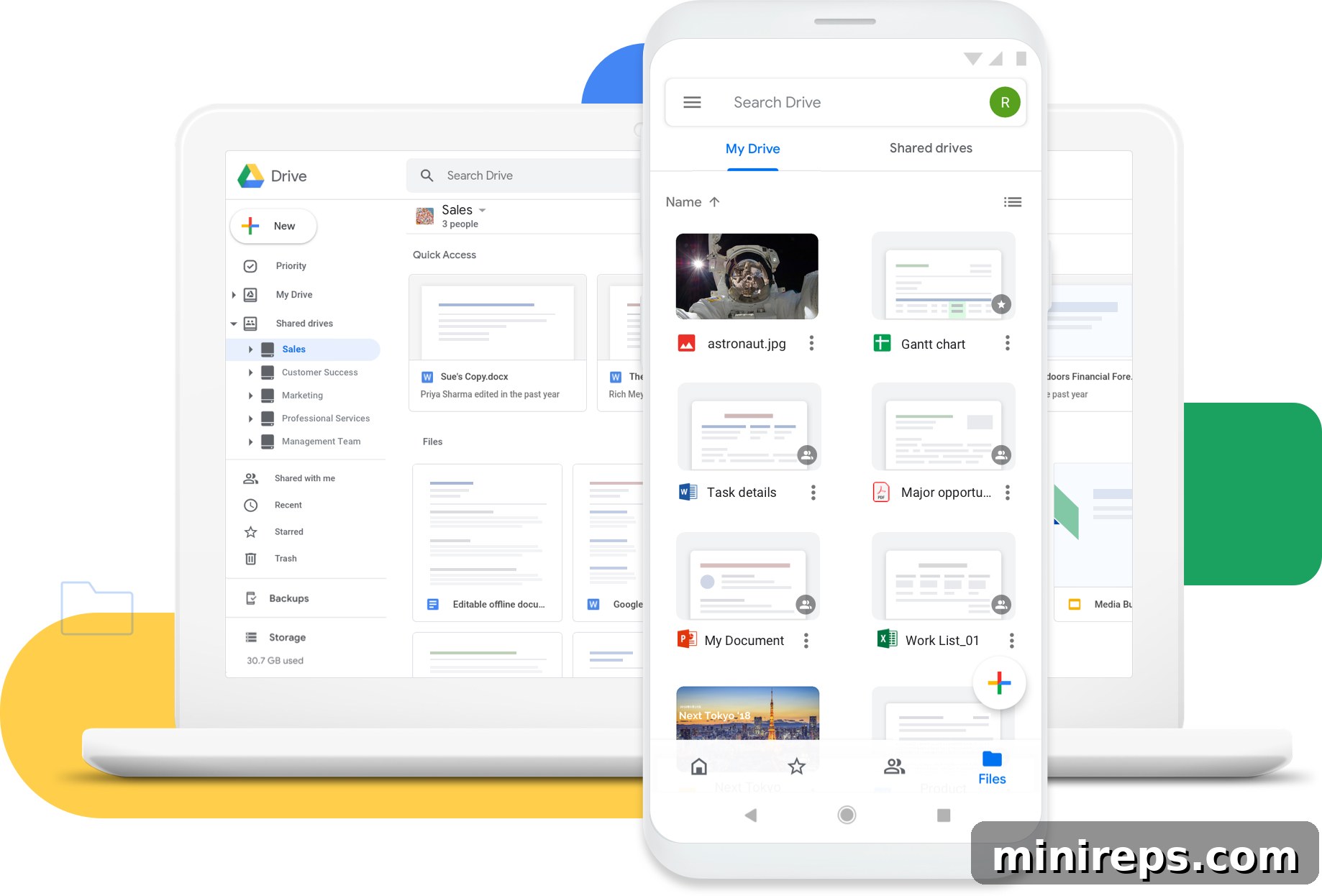
Best practice tip #1: Instant Document Creation with Google’s .new URL Hacks. Boost your team’s efficiency by instantly opening and creating new documents, spreadsheets, presentations, forms, and more using Google’s intuitive .new URL hacks. Simply type docs.new for a new Google Doc, sheets.new for a new Google Sheet, or slides.new for a new Google Slide directly into your browser’s address bar. This shortcut bypasses the need to navigate through Drive, saving precious seconds and streamlining your workflow, especially when you need to quickly jot down ideas or start a project.
#2 Shared Drive Organization: Centralized Control and Intelligent Search
Efficient document organization is the cornerstone of productive teamwork, especially within a remote or hybrid environment. Google Drive takes organization to the next level with its sophisticated sharing and structuring capabilities, offering both individual “My Drive” and collaborative “Shared Drives.”
While “My Drive” serves as your personal cloud storage, ideal for individual files and projects, “Shared Drives” (formerly Team Drives) are specifically designed for organizational and team-based content. With a Google Workspace account, Shared Drives provide a dedicated space where files belong to a team rather than an individual. This crucial distinction means that even if a team member leaves the organization, the files within the Shared Drive remain accessible to the team, ensuring business continuity and preventing knowledge loss.
Organizations can create multiple Shared Drives tailored to specific departments, projects, teams, or management levels. For example, you might have a “Marketing Assets” Shared Drive, a “HR Policies” Shared Drive, or a “Q3 Project Phoenix” Shared Drive. This structured approach helps maintain clarity and ensures that relevant content is always in the right place. Within each Shared Drive, you can further organize documents into folders and subfolders, mimicking the familiar structure of a local computer but with the added benefits of cloud collaboration.
A key strength of Shared Drives lies in their robust permissions system. Administrators and content managers can set precise access levels for individual files, folders, and entire drives. Permissions can range from “Viewer” (read-only) to “Commenter,” “Editor,” “Content Manager,” and “Manager,” each with escalating levels of control. This granular control allows you to grant access to your entire organization, specific groups, or even individual users, promoting secure sharing practices and data governance. You can prevent accidental deletions, restrict who can download sensitive files, and ensure that only authorized personnel can make modifications.
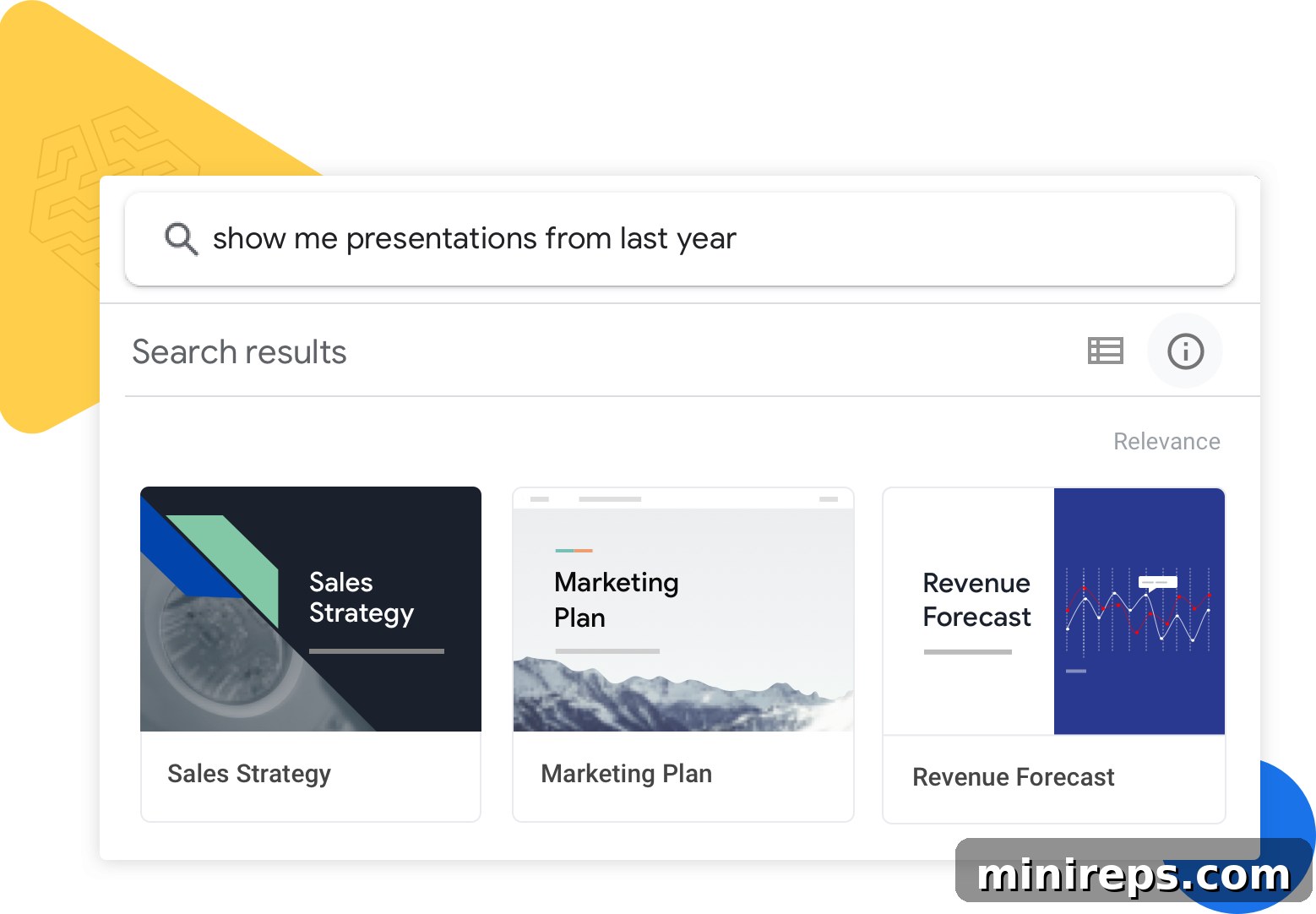
In addition to superior organization, Google Drive boasts an incredibly powerful search function – a core competency of the search engine giant. Regardless of whether a document is tucked away in your personal “My Drive” or deeply nested within a “Shared Drive,” a quick and intelligent search will instantly retrieve any documents you have access to or that have been shared with you in the past. Google Drive’s search capabilities extend beyond just filenames; it can search within the content of documents, images (using OCR), and even videos, identifying keywords and phrases. This dramatically reduces the time spent sifting through files, allowing your team to allocate more energy to productive tasks and less to administrative overhead.
Best practice tip #2: Seamless Microsoft Office Integration with “Convert Uploads.” Facilitate a smooth transition for teams accustomed to Microsoft Office by utilizing Google Drive’s “Convert Uploads” setting. When you upload Microsoft Office files (e.g., Word, Excel, and PowerPoint documents), this feature can automatically convert them into their Google Workspace equivalents (Docs, Sheets, or Slides). This not only enables real-time collaboration on these documents but also ensures compatibility within the Google ecosystem, preserving formatting and content integrity. This means your team can continue working with familiar file types while leveraging the full power of Google’s cloud collaboration.
#3 Maximum Document Collaboration in Real-Time: The End of Version Chaos
One of Google Drive’s most transformative features is its unparalleled real-time collaboration, which fundamentally changes how teams work together on documents. To truly appreciate its impact, let’s consider two distinct scenarios.
Scenario One: The Traditional Grind.
Imagine your department gathered in a physical conference room. Everyone is diligently taking notes on their individual laptops or notebooks. After the meeting concludes, you are tasked with compiling and sending an email recap. As you review your notes, you realize you’ve missed a crucial action item or a key decision. To rectify this, you must track down your colleagues individually, requesting them to review your draft and add any missing information via email. This process is prone to delays, fragmented feedback, and the dreaded “version control” nightmare, where multiple copies of a document circulate, making it impossible to identify the most current or accurate version.

Now imagine scenario number two: The Google Drive Advantage.
You’re participating in a virtual Google Meet video conference with your team. At the start of the meeting, a single link to a Google Doc, hosted in your department’s Shared Drive, is shared with everyone. As the discussion unfolds, all team members contribute directly to the same document in real-time. You can instantly see who has the document open, observe their cursors moving, and watch edits appear as they happen. There’s no need to compile notes afterwards, as the collective intelligence is captured synchronously. Once the meeting concludes, you simply send an email to your team with the link to the shared, already-completed notes. You have complete peace of mind knowing that every detail has been captured, changes are saved automatically and continuously, and everyone is working from the single, most up-to-date version of the truth. This eliminates confusion, reduces post-meeting administrative work, and ensures critical information is never missed.
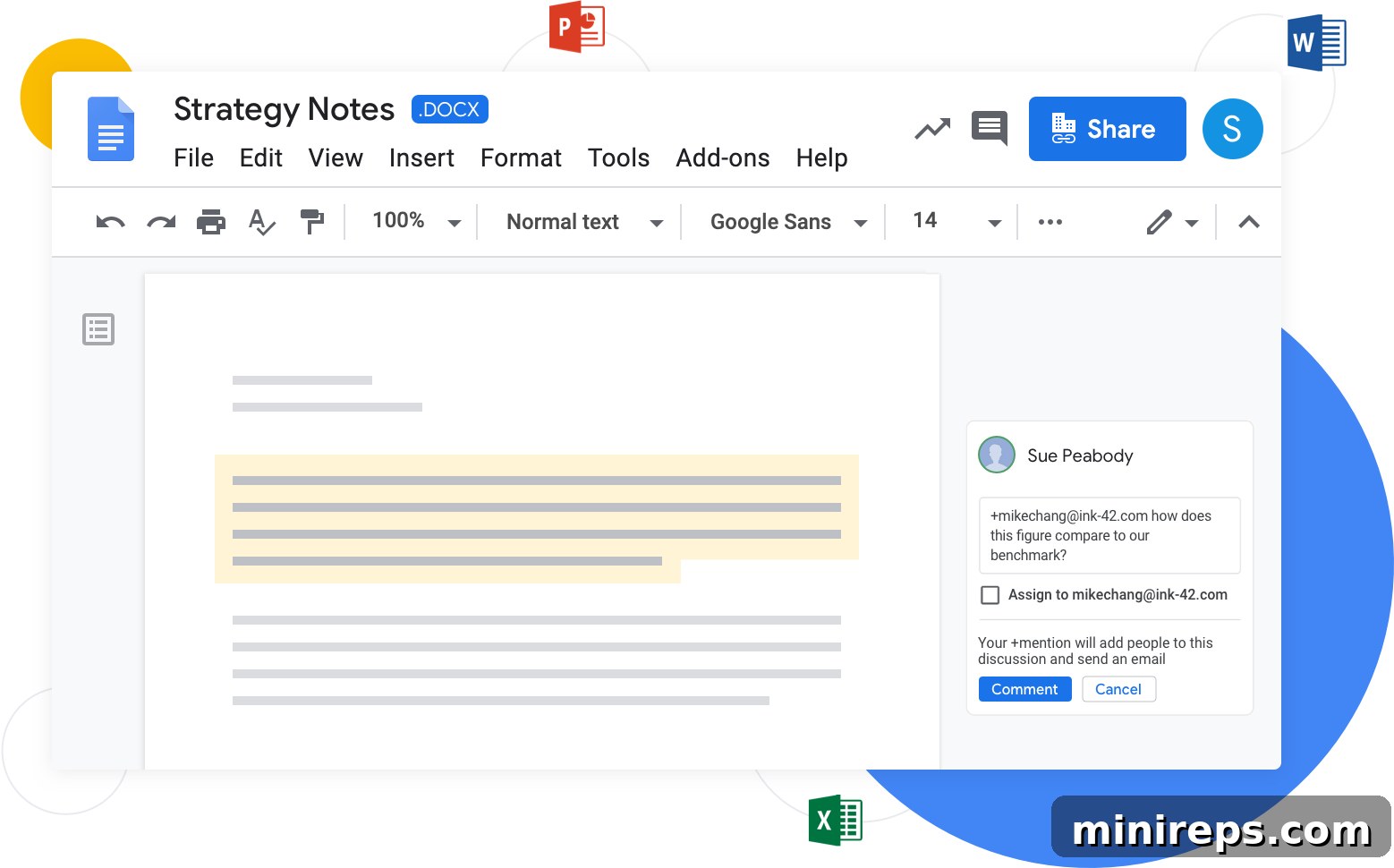
This powerful real-time collaboration feature isn’t limited to Google’s native Docs, Sheets, and Slides. It extends its magic to Microsoft Office files stored in Google Drive, allowing teams to co-edit Word, Excel, and PowerPoint documents with the same seamless experience. The ability to work together synchronously, regardless of file type, significantly reduces the incessant back-and-forth email communications that plague traditional workflows, dramatically increasing overall team productivity and accelerating project timelines. While Microsoft Office 365 offers its own collaboration tools, Google Drive’s integrated ecosystem, intuitive interface, and robust cloud infrastructure solidify its position as the true secure collaboration hero for the modern enterprise.
Best practice tip #3: Leverage Enhanced Communication with Comments and Task Assignment. Beyond simple editing, Google Drive facilitates rich communication within documents. You can easily add targeted comments to specific sections or words, providing contextual feedback. Elevate this by using the “+mention” feature, typing + followed by a colleague’s name or email. This sends an automatic email notification to them, directing their attention to your comment. For critical actions, you can even assign tasks directly from a comment, setting a deadline and requesting approvals. This transforms documents into dynamic project hubs, reducing reliance on separate project management tools and ensuring accountability.

Final Thoughts: Google Drive – Powering the Future of Work
In a world where businesses are constantly seeking an edge in efficiency and innovation, finding the ideal collaboration and productivity solution is paramount to sustained success. Google Workspace, with Google Drive at its core, has emerged as the definitive choice for millions of organizations worldwide, ranging from small to medium-sized businesses (SMBs) to Fortune 500 enterprises. Its comprehensive, all-in-one approach has proven to be a catalyst for transforming the way businesses operate, making teams more agile, connected, and productive.
The benefits extend beyond individual features; it’s the seamless integration and intuitive user experience that truly sets Google Drive apart. By providing secure cloud storage, intelligent organization through Shared Drives, and unparalleled real-time collaboration, Google Drive addresses the most pressing challenges faced by modern teams, particularly those operating remotely or in hybrid models. It eliminates the frustration of version control, streamlines communication, enhances data security, and ensures that critical information is always accessible and actionable.
Choosing Google Drive means investing in a future-proof solution that evolves with your business needs, backed by Google’s continuous innovation and world-class infrastructure. It’s not just about storing files; it’s about building a dynamic, collaborative environment that empowers every employee to contribute their best work, fostering creativity and driving growth.
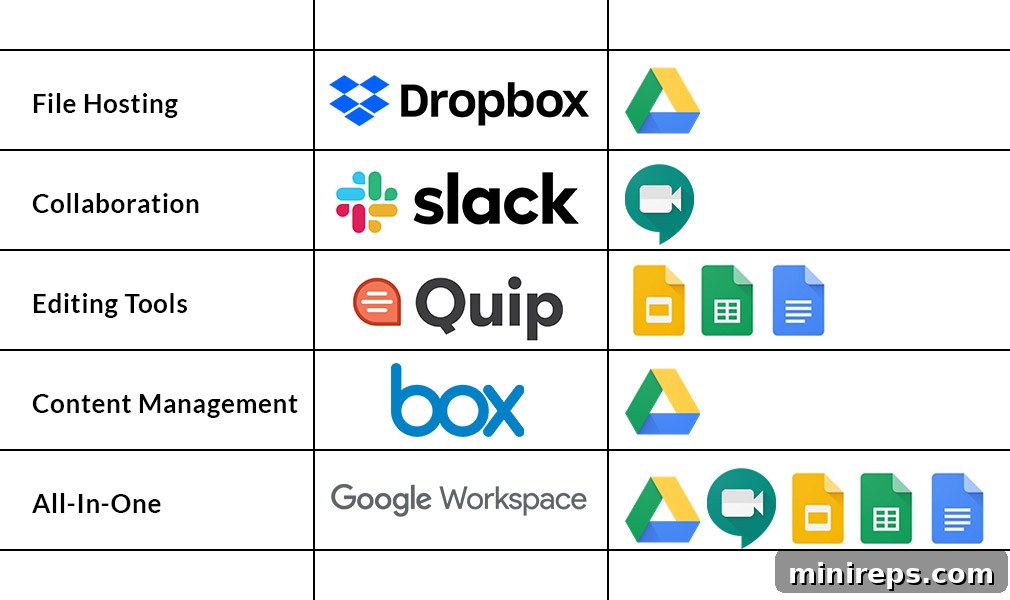
To understand how Google Drive stands against its competitors and why it consistently leads the market, see the insightful comparison chart below that highlights its superior capabilities compared to other popular platforms. This visual representation underscores its value proposition and robust feature set, making the choice clear for businesses looking for a robust and reliable cloud solution.
Embrace Google Drive to unlock a new era of productivity and collaboration for your team. Empower your workforce with tools that are designed for today’s dynamic business environment, ensuring security, accessibility, and effortless teamwork.