


For businesses embarking on their journey with Google Workspace, a common initial hurdle involves distinguishing between a Google Workspace user, an email alias, and a domain alias. These terms, while seemingly similar, refer to distinct functionalities that can profoundly impact your organization’s communication efficiency and budget. This comprehensive guide aims to clarify these differences, empowering you to maximize your Google Workspace account with strategic use of users, email aliases, and domain aliases. By understanding these core concepts, you can streamline operations, enhance professional branding, and achieve greater productivity, regardless of your team’s size or the number of domains you manage.
Mastering Google Workspace: User, Email Alias, and Domain Alias Explained
Navigating the features of Google Workspace is essential for any modern business aiming for efficiency. One of the most critical aspects to understand for both operational effectiveness and cost management is the precise difference between a user account, an email alias, and a domain alias. Many organizations inadvertently incur unnecessary costs by creating full user accounts when a more economical and suitable alias would suffice. This confusion can be frustrating, especially when Google Workspace provides intelligent solutions designed to optimize your email infrastructure.
Our objective is to simplify these concepts, providing you with a clear roadmap to determine when each option is appropriate. This understanding is key to unlocking the full potential of your Google Workspace investment without overspending. Let’s delineate each term with practical examples to illuminate their unique roles.
Defining a Google Workspace User Account
At its core, a Google Workspace user account is a dedicated license purchased for an individual within your organization. Each user account provides a unique primary email address (e.g., [email protected]), a secure login identity, a private inbox, and personal access to the full suite of Google Workspace applications. This includes dedicated storage in Google Drive, a personal Google Calendar, access to Google Meet for video conferencing, and the ability to create and manage documents, spreadsheets, and presentations.
You will always need a new Google Workspace user account for every person who requires an independent login, their own dedicated workspace, and the ability to fully utilize Google Workspace services as an individual. For instance, if Rob is a new hire joining Sally in your accounting department, and both need their own distinct email, calendar, and Drive space to perform their duties, Rob will require a brand new user account. This ensures he has his unique digital identity and a secure, personalized environment within your company’s Google ecosystem.
How (and Why) You Should Utilize Gmail Email Aliases
Email aliases are a cornerstone of efficient email management, offering incredible flexibility without additional costs. They allow a single user to manage communications from various professional identities. For a deeper dive into the practical applications and setup procedures for Gmail email aliases, click the link below.
Read More About Gmail Email Aliases
Unlocking Flexibility with Google Workspace Email Aliases
In contrast to a full user account, an email alias (also known as a secondary email address) is simply an alternative email address that routes to an existing Google Workspace user’s primary inbox. An email alias does not possess its own login, separate storage, or an independent suite of Google Workspace services. Instead, any email sent to an alias address is automatically delivered to the designated user’s main inbox. This functionality is immensely valuable for improving organizational efficiency, presenting a professional image, and, critically, saving costs.
Consider our accounting team, now with Rob and Sally. If they decide they need a dedicated email address for all billing inquiries, such as [email protected], you wouldn’t need to create a new, paid Google Workspace user for this purpose. Instead, you would create [email protected] as an email alias and assign it to either Rob’s or Sally’s primary account, or perhaps a Google Group they are both members of. This setup allows for a specific departmental or role-based email address to function without the overhead of an additional user license. Each Google Workspace user can be assigned up to 30 email aliases at no additional cost, making this a highly versatile and economical solution for managing diverse communication points.
Practical Applications and Benefits of Email Aliases:
- Departmental & Role-Based Addresses: Create professional-looking addresses like
[email protected],[email protected],[email protected], or[email protected]. These aliases can all point to the appropriate team member’s or department head’s inbox. - Personal Branding: A user whose primary email is
[email protected]might want to receive mail sent to[email protected]or[email protected]for various external communications. - Project-Specific Communication: For temporary projects or initiatives, an alias such as
[email protected]can consolidate all related correspondence into the project manager’s inbox, ensuring nothing is missed. - Seamless Transitions: When an employee’s role changes, or a new person takes over a position, an alias can simply be reassigned to the new incumbent, ensuring continuity in communication channels.
The simplest way to differentiate: Users are distinct individuals who require their own login and full access to Google Workspace services. Email aliases are supplementary email addresses that direct mail to an existing user’s inbox, providing organizational flexibility and cost savings.
Email Alias vs. Domain Alias: Managing Multiple Brands and Domains
With a clear understanding of users and email aliases, let’s now explore the concept of a domain alias – a powerful feature for businesses operating with multiple domain names. When you initially configure your Google Workspace account, it’s linked to a primary domain, such as yourcompany.com. This primary domain serves as the default for all your user accounts and email addresses.
However, many businesses grow to encompass multiple domains. This often happens through company acquisitions, the launch of new brands or product lines, or the need to maintain an older brand’s online presence. In such scenarios, a domain alias becomes an indispensable tool.
A domain alias allows all your Google Workspace users to receive email at a second, aliased domain while maintaining their existing primary user account from your main domain. For example, if your primary domain is yourcompany.com, and you also own other-domain.com, you can add other-domain.com as a domain alias. This means that a user like Leo, whose primary email is [email protected], will automatically receive emails sent to [email protected]. Crucially, this functionality is provided at no extra cost per user, offering remarkable flexibility for organizations managing multiple brands or entities under one Google Workspace account.
Email Alias in Review

(A different address for the same user, on the same domain)
VS
Domain Alias in Review

(The same user receiving mail from a different domain)
Key Advantages and Considerations for Domain Aliases:
- Consolidated Management: All users across your primary and aliased domains are centrally managed under a single Google Workspace account, significantly simplifying administration, user provisioning, and billing.
- Consistent Multi-Brand Presence: Project a unified and professional image across all your business units or brands. Employees can send and receive emails using addresses from any of your associated domains, maintaining brand consistency.
- Streamlined Communication: Users can effortlessly send and receive emails using either their primary domain address or any of their domain alias addresses from the same inbox. This is particularly beneficial for individuals responsible for communications across multiple brands or product lines.
- Unified File Sharing & Collaboration: Google Drive files and collaborative documents can be shared and accessed seamlessly, regardless of which email address (primary or alias) is used for communication, ensuring all work resides within the same user’s ecosystem.
- Login and Primary Service Limitations: It’s important to remember that users will always sign in to their Google Workspace account using their primary email address associated with the main domain. While they can configure Gmail to “Send mail as” from their domain alias, services like Google Calendar invitations or new Google Docs will typically default to showing the primary email address.
To summarize, an email alias offers an alternative address on the same domain for a specific user, whereas a domain alias provides an alternative domain-wide address for all users within your Google Workspace. Both are powerful tools, but they serve different strategic purposes.
Comprehensive Guide: Setting Up and Using Your Google Workspace Domain Alias
Adding a domain alias to your Google Workspace account extends your communication capabilities and reinforces your brand presence across multiple domains. This detailed, step-by-step guide will walk you through the process, ensuring a smooth integration of your additional domain.
Before You Start: Ensure you are the verified owner of the domain you wish to add as an alias. You will also need administrative access to that domain’s DNS (Domain Name System) settings, as you’ll be required to verify ownership and update critical MX records.
Phase 1: Adding a Domain Alias to Your Google Workspace Account
- Access the Google Workspace Admin Console: Begin by logging into your Google Workspace Admin console. Use your administrator credentials to sign in at admin.google.com.
- Navigate to Domain Management: Once logged in, from the Admin console Home page, locate and click on Domains > Manage domains. This section is your central hub for all domains linked to your Google Workspace.
- Initiate the Domain Alias Addition: Within the ‘Manage domains’ interface, you’ll find an option to Add a domain alias. Click this to start the process of integrating your new domain.
- Enter Your Domain Name: In the designated field, carefully type the full domain name you wish to add as an alias (e.g.,
yoursecondarydomain.com). Accuracy is key here. - Proceed to Domain Verification: Click Continue and verify domain ownership. Google will then present you with instructions for verifying your domain. This typically involves adding a specific TXT or CNAME record to your domain’s DNS settings via your domain registrar (e.g., GoDaddy, Namecheap, Cloudflare). Follow these on-screen prompts meticulously. Verification is a critical security step to confirm you indeed own the domain.
- Configure MX Records for Email: After your domain successfully passes verification (which may take anywhere from a few minutes to several hours, depending on DNS propagation), you’ll need to configure its Mail Exchange (MX) records. In the Admin console, hover over your newly added domain and click on Set up Google MX records.
- Update DNS with Google’s MX Records: Google will provide you with a list of specific MX record values. You must update your domain’s MX records at your domain registrar or DNS host to point exclusively to Google’s mail servers. This crucial step directs all incoming email for your domain alias to your Google Workspace. For detailed instructions, refer to Google’s official documentation on MX record setup.
- Confirm Completion: Once you have updated the MX records, return to the Admin console and click I have completed these steps.


Be advised that DNS changes, including both domain verification and MX record propagation, can take a full 48 to 72 hours to update globally across the internet. During this period, email delivery to your new domain alias may be inconsistent.
Phase 2: Sending Messages from Your Domain Alias in Gmail
Once your domain alias is successfully set up and verified in the Admin console, your users will automatically start receiving emails sent to their respective alias addresses. To empower users to *send* emails from these aliases, each user needs to perform a quick configuration in their personal Gmail settings.
- Open Your Gmail Account: Log in to your personal Gmail account via a web browser.
- Access Gmail Settings: In the top right corner of your Gmail interface, click on the Settings icon (which looks like a gear) and then select See all settings from the dropdown menu.
- Navigate to Accounts and Import: Click on the Accounts and Import tab (or sometimes just ‘Accounts’, depending on the Gmail version) located at the top of the settings page.
- Add Another Email Address: In the “Send mail as” section, you will see a link to Add another email address. Click this link to open a new configuration window.
- Enter Alias Details: A pop-up window will appear. Enter your desired display name (the name recipients will see) and then your full domain alias email address (e.g.,
[email protected]). - Ensure “Treat as an alias” is Checked: Make sure the Treat as an alias box is checked. This crucial step informs Gmail that this address is tied to your primary account and typically bypasses the need for a separate verification email sent to the alias itself.
- Complete the Setup: Click Next Step and follow any subsequent confirmation prompts. For aliases within your Google Workspace, direct verification is usually not required.
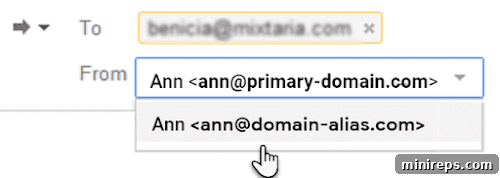
- Send a Test Message: When composing a new email in Gmail, you will now observe a “From” dropdown menu. Click on this menu and select your newly added domain alias address to send messages from it.
Testing and Troubleshooting Your Domain Alias:
You should now be automatically receiving messages at your domain alias address. To confirm the setup, send a test message from an external email account (one that is *not* part of your Google Workspace) to your newly configured domain alias.
If you do not receive the test message within 48-72 hours after completing all the setup steps, it often suggests an issue with your MX records or DNS propagation. In such instances, we highly recommend contacting your domain hosting provider’s support team or Google Workspace support. They can assist in verifying whether your MX records are correctly configured and have fully propagated across the internet, and help identify any conflicting DNS entries that might be preventing email delivery.
Best Practices for Efficient Management of Users and Aliases in Google Workspace
Effective management of user accounts, email aliases, and domain aliases is paramount for maintaining an organized, secure, and cost-efficient Google Workspace environment. Adopting these best practices will help you optimize your communication infrastructure:
- Conduct Regular Audits: Periodically review your active user accounts, email aliases, and domain aliases. Deactivate or remove aliases that are no longer necessary, and reassign them promptly when roles change within your organization. This practice helps maintain a clean system and enhances security.
- Implement Clear Naming Conventions: Establish consistent naming standards for your aliases (e.g.,
[department]@[yourcompany.com],[role]@[yourcompany.com], or[project-name]@[yourcompany.com]). This ensures clarity, ease of identification, and professional consistency. - Maintain Comprehensive Documentation: Keep an updated record of all created aliases, their assigned primary users, the purpose they serve, and any specific configurations. This documentation is invaluable for troubleshooting, onboarding new administrative staff, and ensuring business continuity.
- Prioritize Security Awareness: Educate your users that emails sent to their aliases are delivered to their primary inbox. Consequently, if an alias receives spam, phishing attempts, or malicious content, it directly impacts their main account. Encourage vigilance and adherence to security protocols.
- Leverage Google Groups for Teams: For larger departments or teams where multiple individuals need to receive and collectively manage emails sent to a common address (e.g.,
[email protected]or[email protected]), consider using Google Groups instead of assigning an alias to a single user. Google Groups offer robust features for collaborative email management, acting as a more scalable solution for shared inboxes. - Educate Users on “Send Mail As” Configuration: Ensure all relevant users are proficient in setting up and utilizing the “Send mail as” feature in Gmail for their aliases. This empowers them to project the correct professional identity when responding to emails initially sent to those aliases, enhancing brand consistency.
Conclusion: Harnessing Google Workspace for Optimal Business Communication
A thorough understanding of the distinctions between Google Workspace users, email aliases, and domain aliases is a fundamental cornerstone for any organization aiming to fully leverage its investment in Google’s powerful suite of productivity tools. By strategically deploying these features, businesses can cultivate a highly professional online presence, significantly streamline both internal and external communication flows, and realize substantial cost savings by avoiding the unnecessary procurement of user licenses.
Empowering administrators with the knowledge of when to provision a new user account for an individual, when to create an email alias for a specific departmental contact point on the same domain, and when to implement a domain alias for seamlessly managing multiple brand identities under a single Google Workspace umbrella enables the construction of a flexible, scalable, and remarkably efficient email infrastructure. Embrace these insights to unlock the complete potential of your Google Workspace, ensuring your business communications are consistently clear, professional, and cost-effective.