
For years, Google Docs has stood as a pillar of modern productivity, celebrated for its unparalleled real-time collaboration, intuitive file sharing, and inherently cloud-first architecture. It redefined how teams work together on documents, making geographical barriers irrelevant. Now, with the seamless integration of Gemini AI, Google Docs is not just evolving; it’s undergoing a profound transformation into an even more formidable powerhouse. Imagine having a dedicated writing assistant, an innovative designer, and an astute project manager, all harmoniously integrated within your document editor. Google has meticulously reimagined the user experience, enhancing it for peak efficiency and empowering users to achieve unprecedented levels of productivity. Dive into this guide to discover how Gemini in Docs can revolutionize your document creation process, helping you craft impeccably polished materials, ignite new ideas through dynamic brainstorming, and collaboratively accomplish more in significantly less time.
Gemini in Docs: Your Comprehensive AI Assistant for Modern Workflows
Gemini in Docs emerges as your indispensable AI companion, readily accessible from a convenient side panel, ready to elevate every facet of your document workflow. This sophisticated artificial intelligence is engineered to streamline tasks, spark creativity, and refine content with remarkable ease. Here’s a closer look at the diverse ways Gemini can assist you:
- Brainstorm Ideas: Overcome creative blocks by instantly generating innovative concepts, outlines, or potential solutions for any topic. Gemini can help you explore new angles and expand on initial thoughts, transforming a blank page into a canvas of possibilities.
- Write and Refine Text: From drafting initial sentences to polishing entire paragraphs, Gemini acts as your personal editor. It can help you structure your arguments, improve readability, and ensure your message is clear, concise, and compelling.
- Summarize Content: Quickly grasp the essence of lengthy documents. Gemini can condense complex information into digestible summaries, saving you invaluable time and helping you focus on critical details without sifting through pages of text.
- Pull in Insights from Other Files: Seamlessly integrate information from across your Google Drive. By referencing existing documents, presentations, or spreadsheets, Gemini can pull in relevant data and context, ensuring your current document is well-informed and comprehensive.
- Generate Custom Images: Eliminate the need for external image searches. Describe the image you envision, and Gemini will create unique visuals directly within your document, adding a professional and personalized touch to your content.
To harness the full potential of this AI marvel, Gemini presents three core features, each designed to address specific needs within your document creation process: Help Me Create, Help Me Write, and Help Me Visualize. Let’s embark on a detailed exploration of each.
Help Me Create: From Concept to Comprehensive Document in Moments
When the urgency to transform a nascent idea into a fully structured, professional document arises, Help Me Create is your ultimate accelerator. This feature is designed to virtually eliminate the startup friction associated with document creation, allowing you to bypass tedious formatting and content structuring.
By simply articulating your requirements in a custom prompt, you can direct Gemini to build a document tailored to your specific needs. Leveraging the innovative @filename feature, you can effortlessly pull in critical context and data from other files stored in your Google Drive. This intelligent integration ensures that the generated document is not just a generic template but a contextually rich, well-informed piece. Gemini then orchestrates the creation of a beautifully designed and structured document, complete with appropriate text, organized tables, relevant images, and other essential elements, all laid out professionally.
For those moments when inspiration is elusive, or you’re unsure how to phrase your prompt, Gemini offers a diverse array of starter prompts. These pre-designed prompts cater to common tasks and scenarios, providing a perfect jumping-off point. Whether you’re tasked with developing a strategic roadmap for an upcoming product launch, meticulously organizing a comprehensive party planning checklist, or crafting an efficient note-taking template for daily standup meetings, “Help Me Create” offers immediate solutions, drastically reducing the time and effort typically required for such endeavors.
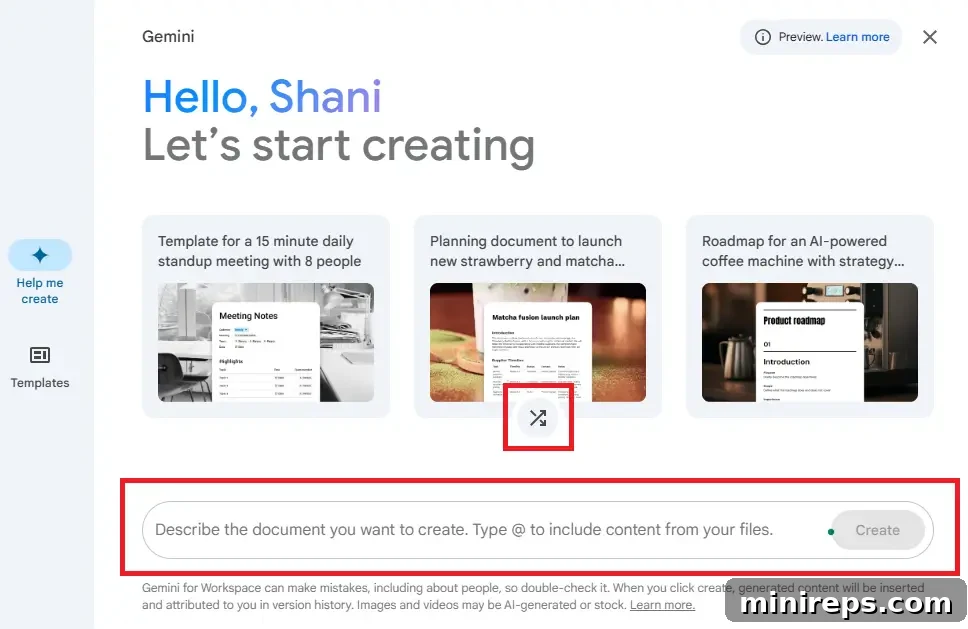
How to unleash the power of Help Me Create:
- Initiate by opening a new document in Google Docs.
- Locate and click the prominent Help me create button positioned at the top of your document interface.
- Alternatively, navigate through the menu by going to File > New > Help me create for more options.
- Once the panel appears, you can either select from a rich variety of ready-made templates or input your unique custom prompt to guide Gemini’s creation process.
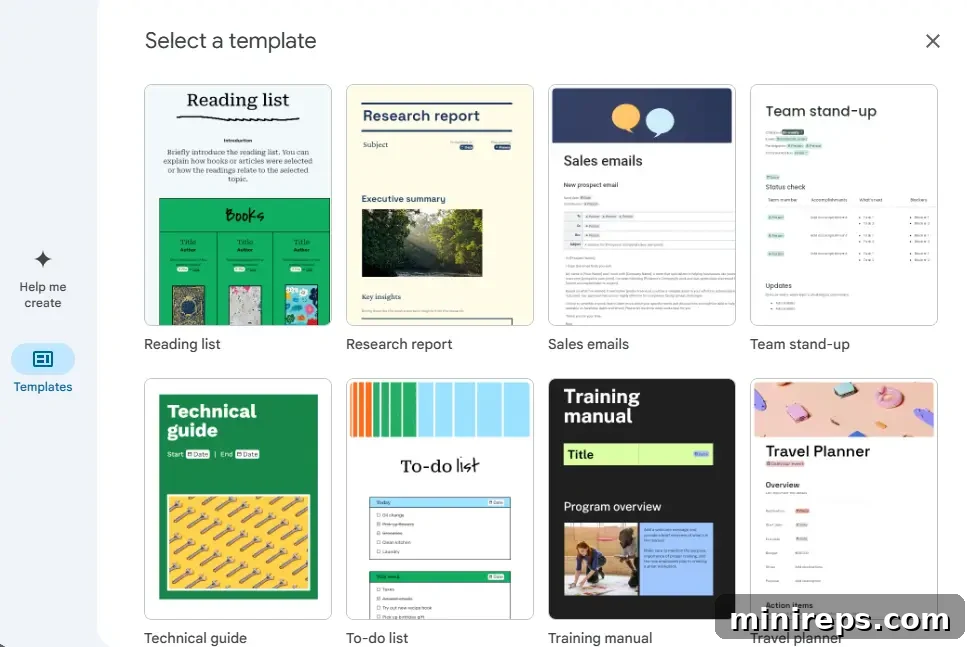
Example Prompt to illustrate its versatility:
“Create a comprehensive proposal for my new client, incorporating all deliverables detailed in [Customer meeting notes – March 23, 2025]. The proposal should clearly outline the scope of work, transparent pricing structures, and projected timing. Furthermore, generate an engaging cover image depicting eco-friendly cleaning products, along with relevant inline visuals throughout the document.”
Help Me Write: Crafting Flawless Content with AI Precision
No matter the complexity or scope of your writing project, Gemini in Docs provides an unparalleled advantage, guiding you from a nascent idea to a meticulously crafted draft. This feature is designed to be your steadfast writing partner, offering assistance at every stage of the content creation lifecycle. You can seamlessly ask Gemini to generate fresh content, expertly refine existing text, rephrase specific sections for clarity or impact, and even create concise summaries or detailed outlines.
The process is incredibly intuitive: simply provide Gemini with a few indicative words or a brief statement about your desired topic, and watch as a comprehensive, well-structured draft is instantly generated. This capability not only saves considerable time but also helps in overcoming writer’s block, providing a solid foundation upon which you can build and personalize your content. Whether you need a formal report, an engaging blog post, or a compelling marketing copy, “Help Me Write” gets you to the starting point swiftly and efficiently.
To activate this powerful tool, select Help me write, which will open a dedicated text input field where you can enter your specific prompt or query.
Example Prompt showcasing its practical application:
“Generate three distinct social media posts that effectively highlight the core benefits of our new line of athletic shoes, with a specific emphasis on superior comfort and exceptional performance.”
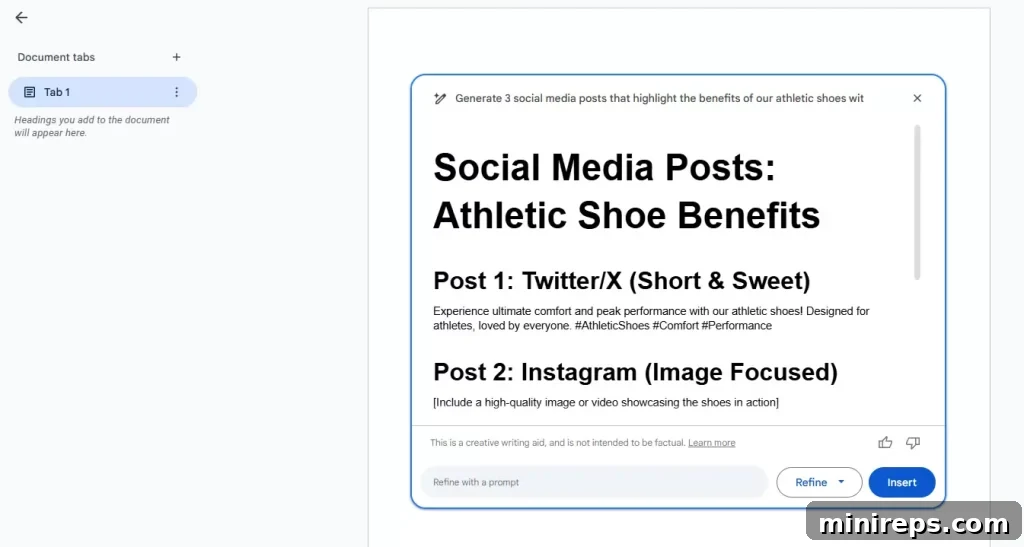
Should the initial generated results not precisely align with your expectations, or if you identify opportunities for refinement and enhancement, Gemini offers a comprehensive suite of options to tailor the text to perfection:
- Shorten: Condense verbose content into a more concise and impactful form, ideal for executive summaries or brief communications.
- Elaborate: Expand on existing ideas or sections, adding more descriptive details, examples, or deeper explanations to enrich the content.
- Tone: Adjust the emotional or formal quality of the writing. Easily switch between a more formal, academic tone, a casual and conversational style, or even a persuasive or empathetic voice.
- Bulletize: Transform dense paragraphs into easy-to-read bullet points, improving readability and making key information stand out.
- Summarize: Generate a high-level overview of selected text, perfect for quick comprehension or creating executive abstracts.
- Retry: If a generated version isn’t quite right, simply request Gemini to produce an entirely new version, leveraging different approaches and phrasing.
- Custom: For ultimate control, provide specific instructions and guidance to Gemini, allowing you to fine-tune the output according to highly particular requirements and stylistic preferences.
To effortlessly modify word choices or rephrase sentences, whether in your original writing or in text generated by Gemini, simply highlight the desired section and click the Refine option for immediate suggestions and improvements.
Bonus Writing Features We Love: Enhancing Every Word
Beyond the core “Help Me Write” functionality, Gemini in Docs integrates several powerful features designed to elevate the quality and efficiency of your writing.
Proofread: Your AI-Powered Editorial Eye
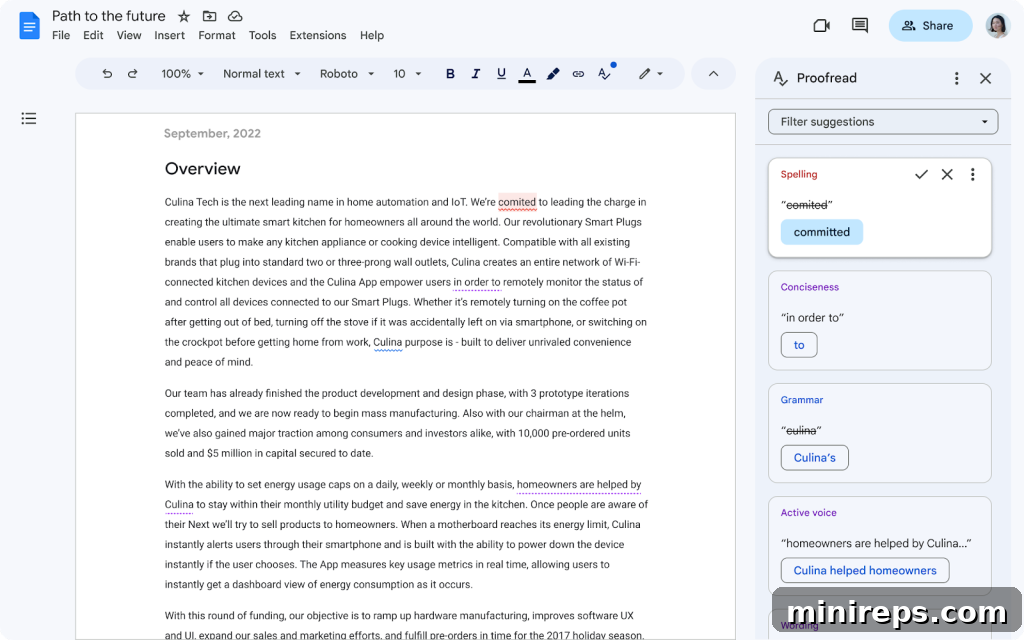
Consider Proofread as your dedicated, always-available personal editor, ensuring that every document you produce is not just free of errors but also impeccably polished and professional before it ever reaches your audience. This advanced feature goes far beyond rudimentary grammar and spelling checks. While it certainly catches those common mistakes, Proofread actively analyzes and provides insightful suggestions on your word choice, helping you select the most precise and impactful vocabulary. It meticulously evaluates your use of active voice, encouraging direct and powerful phrasing, assesses the conciseness of your writing to eliminate unnecessary jargon and filler, and scrutinizes sentence structure for optimal flow and readability. This comprehensive review guarantees your message is conveyed with maximum clarity and impact.
When Proofread identifies areas for improvement or detects potential issues within your writing, a subtle yet clear blue dot will appear on its icon, serving as an immediate visual cue that valuable proofreading suggestions are available for your review. This proactive notification system ensures you never miss an opportunity to enhance your document.
To initiate this essential editing process, simply navigate to Tools > Proofread and let Gemini transform your draft into a masterpiece of communication.
Gems: Tailored AI Personas for Repetitive Tasks
As you increasingly leverage the power of AI in your daily workflow, you might find yourself employing similar prompts for recurring tasks. This is where Gems become an invaluable asset, designed to streamline and automate these repetitive actions, significantly boosting your efficiency.
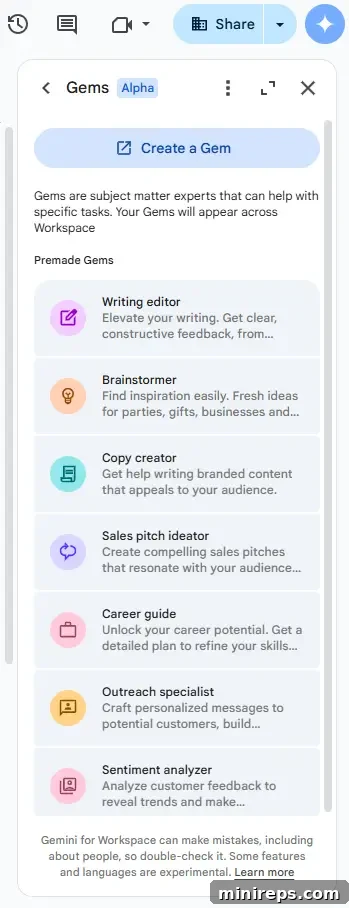
Gems are essentially customizable AI personas, meticulously crafted to assist you in precisely the way you desire. They learn and adapt to your specific needs, remembering the context, tone, and format that matter most to you. This means you can create your own unique Gems, training them for specialized functions, or select from a rich, ever-growing library of pre-configured Gems. Each Gem can embody a distinct role or expertise, ensuring consistent and tailored AI assistance.
For instance, a Gem could be configured as a perpetually cheerful running coach, offering motivating advice and training plans. Another might function as a highly analytical financial advisor, providing concise market insights. Or, perhaps most relevant for document creation, a specialized writing assistant Gem could be developed, one that always remembers your preferred stylistic conventions, target audience, and key messaging points for specific document types. This personalized AI companionship ensures that your most frequent AI interactions are not only efficient but also remarkably consistent and contextually aware, freeing you to focus on higher-value tasks.
Help Me Visualize: Instant Image Generation for Perfect Aesthetics
Gone are the days of laboriously sifting through countless stock photo websites or grappling with complex graphic design software to find or create the ideal image for your document. With Help Me Visualize, Gemini empowers you to bring your visual concepts to life with unprecedented ease and speed. All you need to do is articulate your vision in words, and Gemini will conjure a unique, custom-generated image tailored precisely to your description, directly within your Google Docs interface.
This revolutionary feature not only saves immense time but also ensures that your visuals are perfectly aligned with your content’s theme and message, adding a professional and bespoke touch to all your projects. Whether you need a vibrant header, an illustrative diagram, or a conceptual background, “Help Me Visualize” makes graphic creation accessible to everyone.
How to leverage this powerful image generation tool:
- Begin by opening any new or existing document in Google Docs.
- Navigate to the menu bar and select Insert > Image > Generate an image.
- A prompt box will appear. Clearly describe the image you envision in a few concise words. Be specific about elements, colors, and mood.
- Choose the desired aspect ratio to fit your layout needs, whether it’s square, portrait, or landscape.
- Explore and select a suitable artistic style from options like photography, watercolor, digital art, sketch, and many more, to perfectly match your document’s aesthetic.
- Finally, click Create, and Gemini will present you with unique image options.
A particularly elegant application of “Help Me Visualize” is in putting the final, captivating touches on your projects by creating a distinctive cover image. These visually engaging cover images significantly enhance the professionalism and appeal of your documents. It’s important to note that cover images are exclusively supported in documents configured for pageless mode, which offers a continuous scrolling experience, free from traditional page breaks. To enable this dynamic viewing format, simply go to File > Page setup > Pageless or alternatively select Format > Switch to Pageless format.
Once your document is in pageless mode, you have multiple convenient options to add a cover image, whether from Google’s expertly curated gallery, by uploading your own preferred image, or by generating a brand-new one with Gemini:
- Click the intuitive “Cover image” chip strategically placed at the top of your Google Doc.
- Go to Insert > Cover image for a direct path to the cover image options.
- For quick access, simply type “@” followed by Cover image anywhere in your document, and a smart chip will appear, allowing you to easily add your chosen visual.
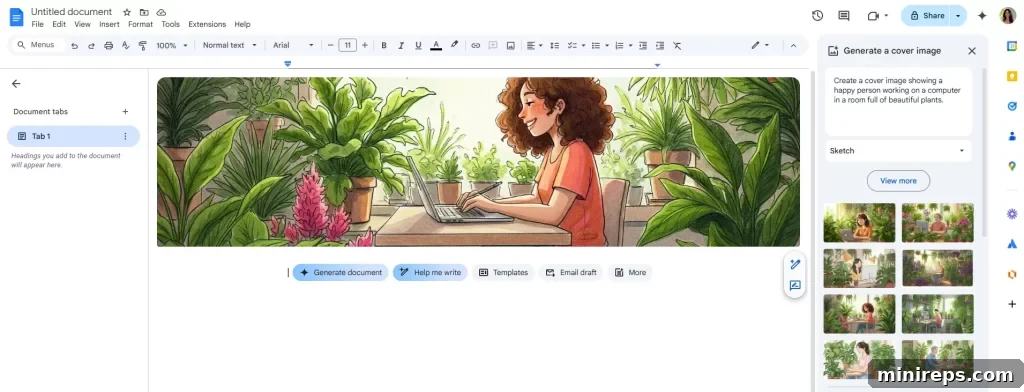
Example prompt for generating an evocative cover image:
“Create a serene cover image showcasing a happy individual diligently working on a computer within a vibrant room, luxuriantly filled with beautiful, thriving indoor plants.”
Other Google Docs Features We Love: Foundations of Collaboration and Efficiency
While Gemini’s integration marks a new era, Google Docs itself remains a treasure trove of robust tools specifically designed to make collaboration and content creation not just faster, but also significantly more intuitive and seamless.
Building Blocks: Accelerate Document Construction
The “Building Blocks” feature revolutionizes how you initiate and structure your documents. By simply typing “@” into your document, you unlock a universe of smart templates, ready to be inserted instantly. These include pre-formatted templates for emails, comprehensive checklists, structured meeting notes, and much more, significantly reducing the time spent on formatting and setting up common document types. Furthermore, Google Docs empowers you to build and save your own custom blocks. This means you can create personalized templates for recurring document sections, project outlines, or specific reporting formats, ensuring consistency and efficiency across all your work. Building Blocks transform routine tasks into quick, standardized actions, allowing you to focus on content rather than structure.
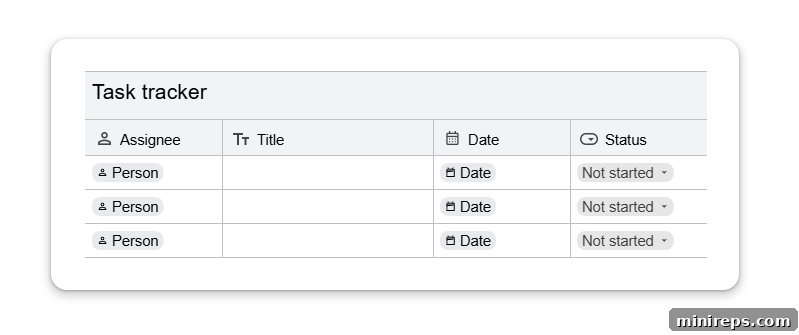
Smart Chips: Dynamic Interconnectivity within Your Docs
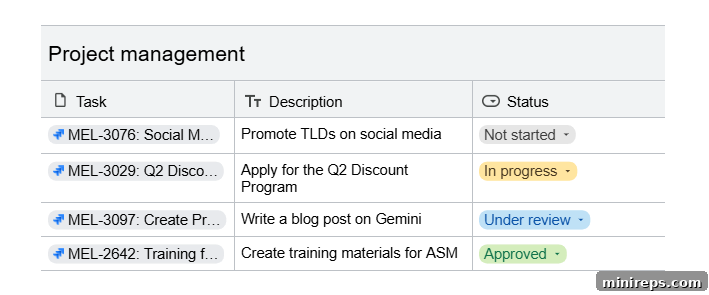
Smart Chips are dynamic, interactive elements that seamlessly embed contextual information directly into your documents. Similar to Building Blocks, by typing “@” followed by a keyword, you can effortlessly link to a wide array of entities: files from your Google Drive, specific individuals (colleagues, clients), important events from your calendar, or relevant geographical locations. These chips provide quick access to linked content or contact information without ever leaving your document, fostering a highly interconnected workflow. Moreover, Smart Chips extend their utility by allowing you to integrate third-party tools such as Figma for design collaboration or Atlassian for project management, directly through accessible add-ons. This capability transforms your Google Doc into a central hub, connecting all your resources and team members in one dynamic space.
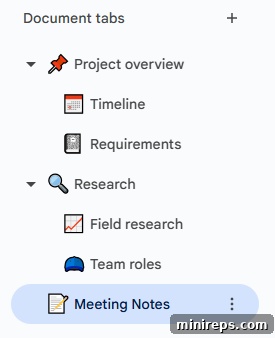
Tabs & Headings: Navigate Complex Documents with Ease
For lengthy or multi-faceted documents, effective organization is paramount. Google Docs provides powerful tools like Tabs and Headings to structure your content logically and enhance navigability. You can segment your document into main tabs and sub-tabs, visually distinguishing sections. Enhancing this, the ability to add emojis to your tabs offers a quick, at-a-glance representation of the content within each section, making identification faster and more intuitive. Crucially, by utilizing the built-in heading styles (Heading 1, Heading 2, etc.), Google Docs automatically generates a dynamic table of contents. This interactive table allows readers to jump directly to any specific section with a single click, eliminating endless scrolling and ensuring a smooth, efficient reading experience. This feature is particularly beneficial for comprehensive reports, manuals, or research papers.
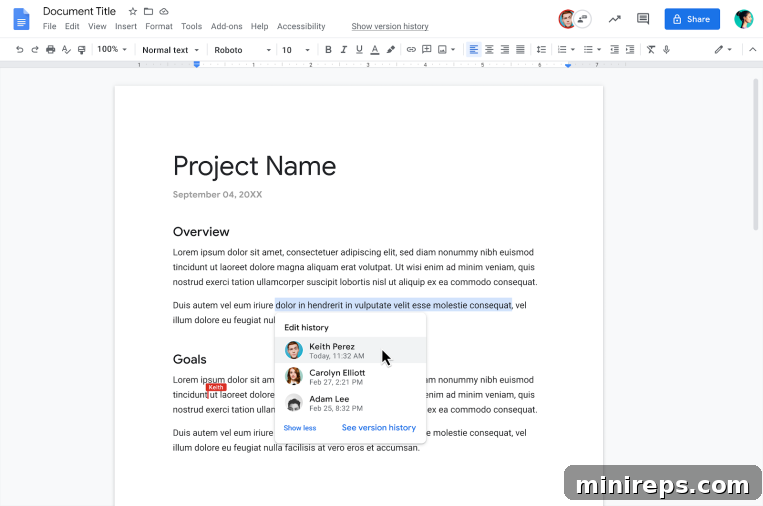
Version History: The Undoing Power for Collaborative Work
In any collaborative environment, where multiple contributors are working on a single document, “Version History” stands as an absolute lifesaver. This indispensable feature meticulously tracks every single edit made to your document, recording who made the change, what was changed, and precisely when it occurred. This transparent audit trail is invaluable for accountability and understanding the evolution of your content. More importantly, Version History provides a robust safety net: if a mistake is made, an unwanted change is introduced, or simply if the team decides to revert to an earlier iteration, you can effortlessly browse through previous versions and restore any historical state of your document. This eliminates the fear of irreversible errors and the frustration of having to start from scratch again, fostering a more confident and experimental approach to teamwork.
Comments & Suggestions: Streamlined Feedback and Collaboration
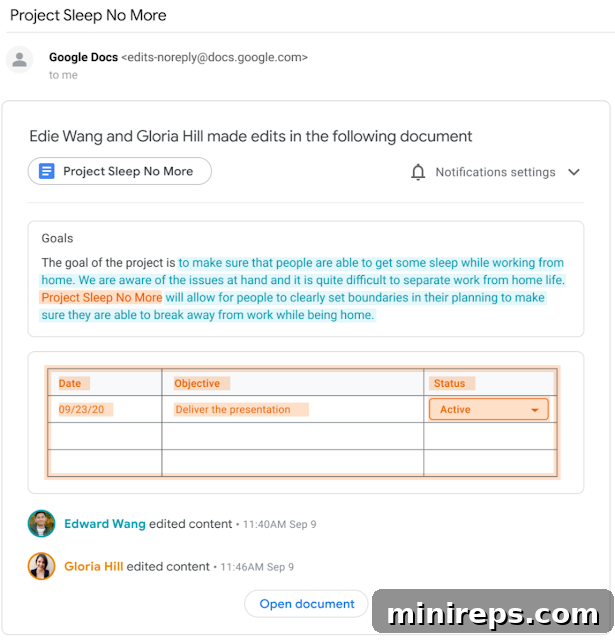
Effective collaboration thrives on clear communication, and Google Docs excels in providing intuitive tools for feedback. The “Comments & Suggestions” features allow teams to share feedback, ask questions, or assign specific tasks directly within the document itself, all in real time. You can use emoji reactions to quickly acknowledge feedback or express sentiments without cluttering the document with text. Critically, the “Suggestions” mode enables contributors to propose edits without directly altering the original text. These proposed changes appear as highlighted modifications that the document owner can then review, accept, or reject. This non-destructive editing approach ensures that the original content remains intact while facilitating a transparent and controlled review process, making collaborative document refinement highly efficient and less prone to miscommunication.
Seamless File Sharing: Effortless Distribution and Access Control
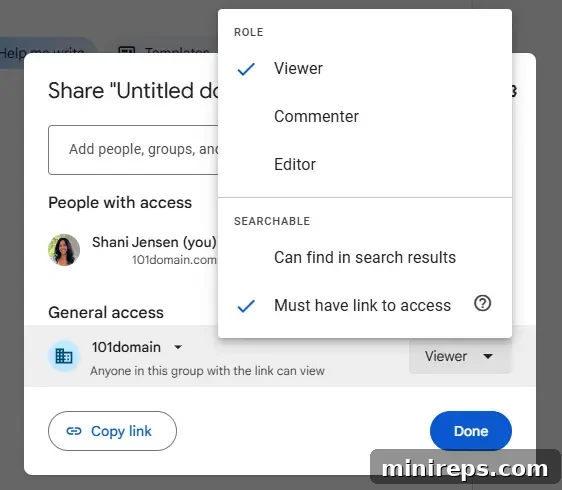
One of Google Docs’ foundational strengths has always been its extraordinary ease of file sharing, both within your organization and with external collaborators. Sharing your document is remarkably straightforward: you can send a direct link via email or generate a shareable URL. The true power lies in the granular control over permissions. When sharing, you can choose from flexible access levels: granting someone “viewer” access allows them to read the document without making changes, “commenter” access enables them to add feedback without altering content, and “editor” access provides full rights to modify the document. This robust permission system ensures that you maintain full control over your content while enabling efficient and secure collaboration with anyone, anywhere.
Google Docs transcends its traditional role as merely a word processor; it has evolved into a dynamic and intelligent content creation hub. With the groundbreaking integration of Gemini AI, you can now seamlessly manage a broad spectrum of tasks—from conceiving initial ideas and drafting compelling narratives to generating custom visuals—all within the unified, familiar environment of Google Docs. This powerful synergy, combined with its long-standing, robust collaborative features, dramatically accelerates projects by eliminating the disruptive need to switch between multiple applications. User-friendly elements such as “@-mentions” and expressive emojis contribute to a streamlined, modern workflow that not only feels intuitive but also makes perfect sense for today’s fast-paced digital landscape.
Are you ready to experience this transformative leap in productivity? Don’t hesitate. Open Google Docs today and embark on your journey to explore the vast capabilities of Gemini for yourself. Discover how AI can amplify your creativity and efficiency.
Stay tuned for the next installment in this illuminating series, where we will delve deeper into the multifaceted applications and benefits of utilizing Gemini within Google Drive, unlocking even more potential for intelligent file management and organization.
Gemini is a powerful component of
Google Workspace is a comprehensive suite of cloud-based productivity and collaboration tools meticulously designed to help individuals, teams, and businesses achieve more with fewer distractions. Experience the integrated power firsthand—try it yourself, absolutely free!