

Google Docs: Streamlined Word Processing for Collaborative Teams
Every Google Workspace plan seamlessly integrates powerful tools, including the indispensable Google Docs, designed to empower productivity and foster dynamic teamwork.

Automatic Saving and Seamless Collaboration: Never Lose Your Work Again
In the fast-paced world of digital collaboration, the thought of losing hours of hard work due to a forgotten save or an unexpected crash is a nightmare for any professional. Traditional word processors often put the burden of constant saving on the user, leading to frustration and lost productivity. Google Docs completely transforms this experience by introducing a truly cloud-native word processing solution.
With Google Docs, the concept of manually hitting “save” becomes a relic of the past. Every single keystroke, every formatting change, and every new piece of content is automatically saved in real-time to the cloud. This revolutionary feature ensures that your work is continuously protected, offering unparalleled peace of mind. Whether you’re working on a critical report, a creative brief, or a simple memo, you can focus entirely on your content without the nagging fear of data loss.
Beyond its robust auto-save capability, Google Docs excels as a collaborative platform. Its cloud-native architecture means that multiple team members can simultaneously access, edit, and contribute to the same document from anywhere in the world. You can observe changes happening live, resolve conflicts instantly, and ensure everyone is always working on the most current version. This eliminates the cumbersome process of emailing attachments back and forth, merging disparate versions, or dealing with outdated files. The result is a highly efficient and transparent workflow that significantly boosts team productivity and fosters a truly collaborative environment.
Effortless Document Sharing for Enhanced Teamwork
One of the most significant pain points associated with legacy word processing tools, such as desktop versions of Microsoft Word, is the complicated and often inefficient process of sharing documents. The traditional workflow typically involves saving a file to your computer, attaching it to an email, and sending it to recipients. This often leads to a convoluted cycle where collaborators download the document, make their edits, save it locally, and then send it back. This method frequently results in version control issues, where multiple, conflicting copies of a document exist, making it difficult to track changes or identify the definitive version.
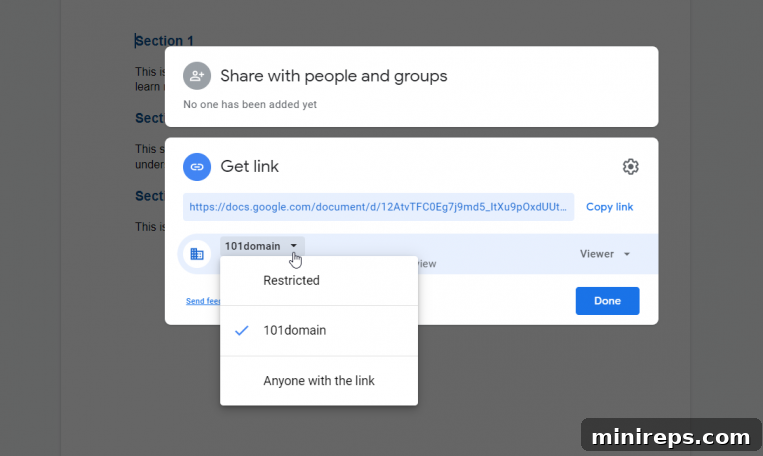
Google Docs dramatically simplifies document sharing, transforming it from a chore into a seamless aspect of your workflow. With just a click of the “Share” button, you unlock a range of flexible options tailored to your collaboration needs. You can easily add specific individuals within your Google Workspace organization or extend access to external collaborators. Furthermore, Google Docs provides granular control over permissions, allowing you to designate whether a recipient can simply view the document, add comments, or actively edit the content. This level of control ensures that sensitive information is protected while empowering appropriate levels of collaboration. This streamlined approach minimizes confusion, reduces the time spent on administrative tasks, and keeps everyone on the same page, literally.
Organize and Navigate with an Automatic Table of Contents
For extensive documents, clear organization is paramount for both authors and readers. Google Docs addresses this need with its intelligent Table of Contents feature, a powerful tool that significantly enhances document navigation and readability. This feature is particularly invaluable for content creators, researchers, and project managers who routinely work with lengthy reports, guides, or proposals.
Google Docs automatically generates a dynamic table of contents based on the headings you use within your document. By simply applying standard heading styles (e.g., Heading 1, Heading 2), Google Docs intelligently maps out the document’s structure, creating clickable links that allow users to jump directly to specific sections. This not only saves time for readers but also helps writers maintain a logical flow and structure as they develop their content. As you continue to refine and expand your document, the table of contents updates in real-time, ensuring it always reflects the latest organization.
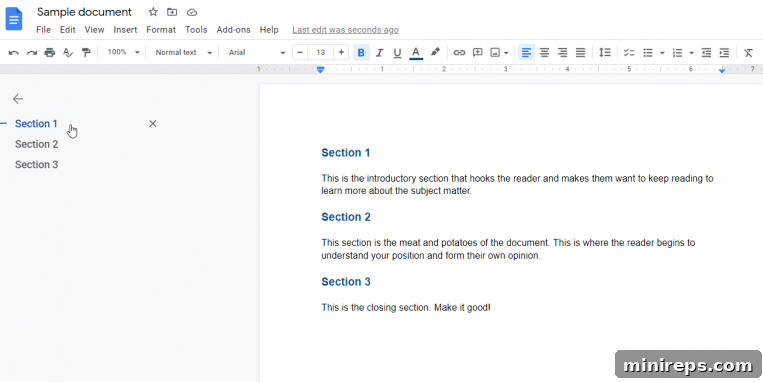
While the automatic generation is incredibly convenient, Google Docs also provides flexibility to customize your table of contents. You can easily remove any auto-generated suggestions that you prefer not to include or add missing sections by utilizing the “Format > Paragraph Styles” tool. This blend of automation and manual control empowers users to create professional, navigable documents that improve overall user experience and clarity. A well-organized document is not only easier to read but also helps in conveying information more effectively, making the table of contents an essential feature for any serious document creation.
Uninterrupted Productivity with Google Docs Offline Mode
Given that Google Workspace is inherently cloud-based and its applications are primarily accessed through a web browser, it’s a common misconception that an active internet connection is constantly required to work. However, Google Docs shatters this limitation with its incredibly useful offline mode, offering true flexibility and ensuring your productivity is never held hostage by an unreliable internet connection.
With offline mode enabled, you gain the power to create, view, and edit your Google Docs from anywhere, even without Wi-Fi or a stable internet connection. This feature is a game-changer for professionals on the go, remote workers in areas with spotty service, or anyone who simply needs to work uninterrupted during commutes or while traveling. Before disconnecting, simply ensure your documents are set to “available offline.” Once you regain internet access, Google Docs automatically syncs all your changes back to the cloud, ensuring that your work is up-to-date and accessible across all your devices and for all your collaborators.
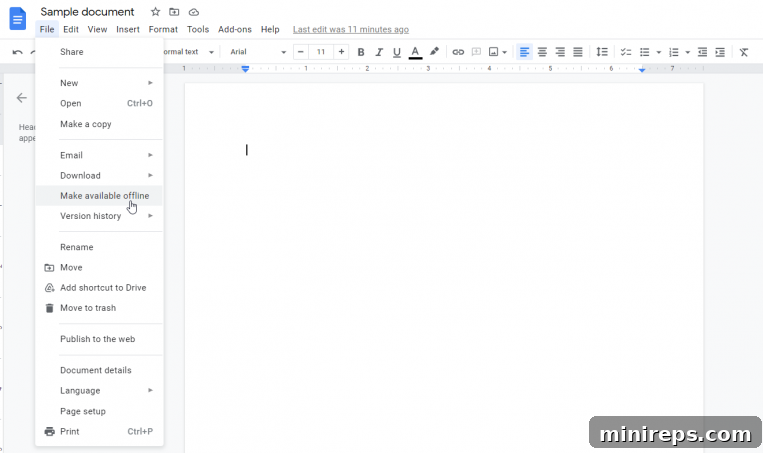
The ability to work offline provides a robust solution for maintaining workflow continuity, transforming Google Docs into a highly reliable tool regardless of your physical location or network availability. This commitment to accessibility underscores Google’s dedication to providing a truly versatile and user-centric word processing experience for modern teams.
Seamless Document Presentation During Google Meet Sessions
One of the cornerstone advantages of Google Docs, as part of the broader Google Workspace ecosystem, is its inherent integration capabilities. This ecosystem is designed to eliminate silos between applications, creating a smooth and efficient workflow. A prime example of this seamless integration is the ability to present your Google Docs directly within a Google Meet video conference, a feature that significantly enhances remote collaboration and meeting efficiency.
Instead of juggling multiple windows, sharing your entire screen, or dealing with cumbersome file uploads, Google Docs provides a dedicated button in the top right corner of your screen that allows you to instantly present your document in an active Google Meet session. This direct integration is incredibly powerful for team reviews, client presentations, or any collaborative discussion where a document is central to the conversation. Participants can view the document in real-time, and with the concurrent editing features of Google Docs, team members can even make live edits or add comments during the meeting, ensuring instant feedback and decision-making.
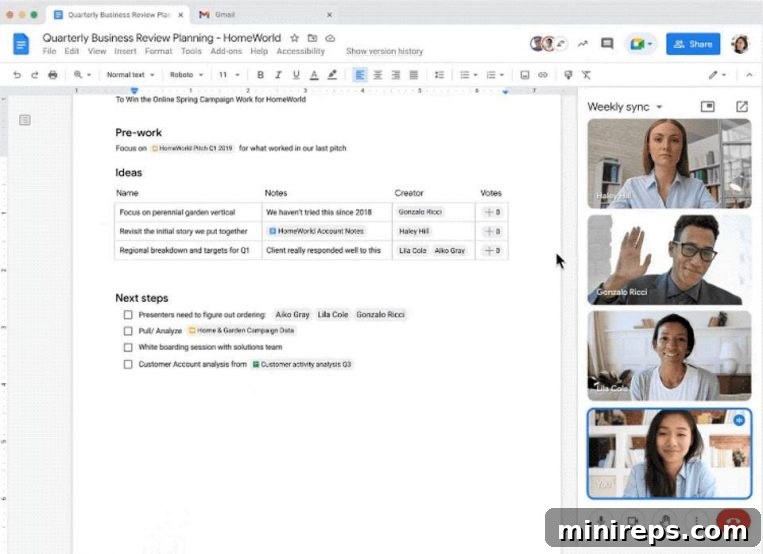
This streamlined presentation capability minimizes technical hurdles, keeps everyone focused on the content, and transforms meetings into dynamic, productive working sessions. It’s a testament to how Google Docs and Google Meet work in harmony to elevate virtual collaboration beyond traditional screen sharing.
Integrated Research: Start a Google Search Directly from Your Document
The writing process often goes hand-in-hand with research. Whether you’re fact-checking a statistic, looking up a definition, or gathering supporting evidence, the need to consult external sources is constant. Traditionally, this meant interrupting your writing flow to open a new browser tab, conduct a search, and then navigate back to your document. This constant context-switching can be a significant drag on productivity and focus.
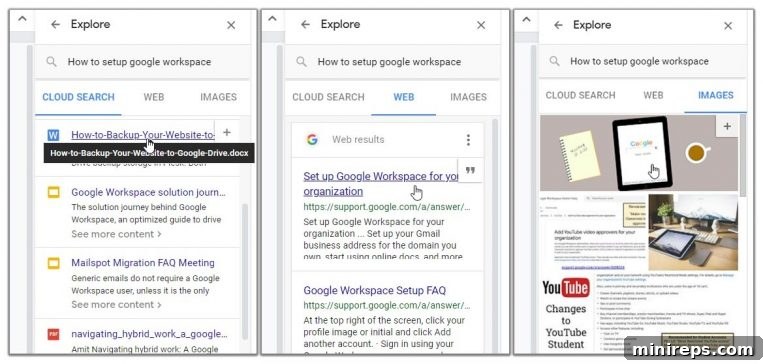
Google Docs brilliantly addresses this challenge with its integrated “Explore” tool, allowing you to initiate a Google search directly from within your document. This powerful feature eliminates the need to leave your current workspace, keeping your attention firmly on the task at hand. The Explore tool isn’t limited to just web searches; it also allows you to search across your other cloud-native Google Workspace applications (like Drive for related documents) and quickly find relevant images. Once you find the information you need, you can open it in a new tab with a single click, or even automatically insert relevant links and citations directly into your document. This seamless integration of research capabilities within Google Docs is a true time-saver, enhancing efficiency and ensuring that your writing is always well-informed and accurately sourced without ever breaking your concentration. It makes the research process feel like an organic extension of writing, rather than a separate, disruptive activity.
Unleash Your Ideas Faster with Voice Typing in Google Docs
In our increasingly voice-centric digital world, speaking has become a preferred method of communication for many. From sending voice messages on smartphones to interacting with smart assistants, dictation offers a speed and ease that traditional typing often can’t match. Recognizing this growing trend, Google Docs incorporates a highly efficient voice typing tool, bringing the power of speech-to-text directly into your word processing environment.
The Google Docs voice typing feature allows you to effortlessly transcribe your spoken words into text within your document. This is an incredibly valuable asset for a wide range of users. For writers, it provides a powerful way to brainstorm ideas, draft content quickly, or overcome writer’s block by simply speaking their thoughts. For individuals who find typing challenging due to physical limitations or simply prefer dictation, it offers an accessible and efficient alternative. It can also be a fantastic tool for transcribing notes from meetings, lectures, or interviews, saving considerable time and effort compared to manual transcription. The accuracy of the voice recognition technology is impressive, making it a reliable feature for turning speech into written content with minimal errors. This innovative tool empowers users to capture their ideas as quickly as they formulate them, significantly boosting productivity and catering to diverse working styles.
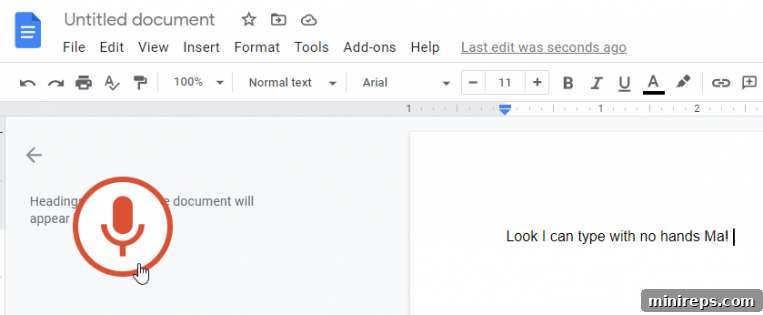
This integration of voice typing into Google Docs exemplifies how modern word processors are evolving to meet the needs of a diverse user base, making content creation more fluid, faster, and more accessible than ever before.
Professional Document Editing and Collaboration Features
Google Docs truly shines when it comes to collaborative editing, offering a suite of professional tools that facilitate seamless teamwork and efficient document refinement. While the ability to co-edit in real-time is foundational, the platform extends this capability with sophisticated features designed to manage feedback, track changes, and ensure accountability.
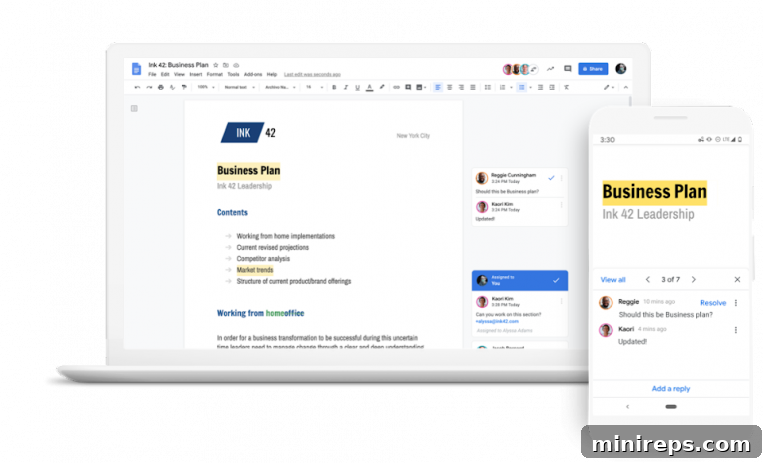
Central to this collaborative ecosystem are the built-in communication tools. You can engage in conversations directly within the document via comments, making it easy to ask questions, provide suggestions, or clarify points without interrupting the document’s flow. The power of the “@” symbol, ubiquitous in modern digital communication, is cleverly integrated here. By using “@” followed by a team member’s name, you can directly tag them in a comment. This sends them a notification, drawing their attention to specific feedback or tasks, and inviting them to respond or take action. This focused communication streamlines the feedback loop, making it clear who needs to address what.
Beyond live interaction, Google Docs provides an invaluable “Revision History” feature. This powerful tool meticulously logs every single change made to a document, detailing who made the change and when. This unlimited revision history acts as a complete audit trail, offering unparalleled transparency and accountability. You can easily view previous versions, compare them, and even restore an earlier iteration of the document if needed. This eliminates the need for manual version saving and protects against accidental deletions or unwanted changes. Together, these collaborative editing tools transform Google Docs into an indispensable platform for teams seeking efficiency, transparency, and robust version control in their word processing workflow, allowing them to truly “edit like a pro.”
Unlock Peak Productivity: Google Docs is a Core Part of
Google Workspace is a comprehensive suite of cloud-based productivity and collaboration tools engineered to help individuals, teams, and businesses achieve more with streamlined workflows and fewer distractions. From smart communication to powerful document creation, discover how Google Workspace can revolutionize your daily operations. Experience the future of work for yourself—start exploring its capabilities today!