

In the vast and interconnected digital landscape, where our lives increasingly reside online, safeguarding personal and professional information has never been more critical. Traditional passwords, once the primary guardians of our digital identities, are proving to be less than foolproof in the face of ever-evolving cyber threats. They can be guessed, phished, brute-forced, or exposed in data breaches, leaving our accounts vulnerable. But what if there was an additional layer of defense, a virtual moat around your digital fortress? This is where Two-Factor Authentication (2FA) comes into play, transforming your mobile device into a powerful, personal security asset.
Consider your smartphone: an almost inseparable extension of yourself. How many miles away would you have to be before you stopped considering turning back to retrieve it if you left it at home? For most, the answer is a surprisingly short distance, highlighting its indispensable role in our daily lives. We carry our phones everywhere, and crucially, we don’t just grant anyone access to them. This inherent personal security makes your smart device the perfect companion for enhancing your online account protection, moving beyond the sole reliance on a password.
Understanding Two-Factor Authentication (2FA): Your Essential Security Upgrade
Two-Factor Authentication, often abbreviated as 2FA, is a security mechanism that requires two distinct forms of identification before granting access to an account. It adds an extra, crucial layer of security beyond your traditional username and password. Instead of just relying on “something you know” (your password), 2FA introduces “something you have” (like your phone or a hardware token) or “something you are” (biometrics like a fingerprint or face scan). This multi-layered approach dramatically reduces the risk of unauthorized access, even if your password falls into the wrong hands.
When 2FA is enabled, the login process becomes a two-step verification. First, you enter your usual username and password. After successfully authenticating this initial step, the system then prompts you for a second factor. In many cases, especially for platforms like 101domain, this second factor is a time-based one-time password (TOTP) generated by an authenticator app on your smartphone or a security code sent via SMS.
This additional security code is unique to each login attempt and changes frequently, typically every 30-60 seconds. This ensures that even if a malicious actor somehow obtains your password, they would still be unable to access your account without physical access to your authenticated device or the specific, current security code. This mechanism creates a formidable barrier against common cyberattacks such as phishing, credential stuffing, and brute-force attacks.
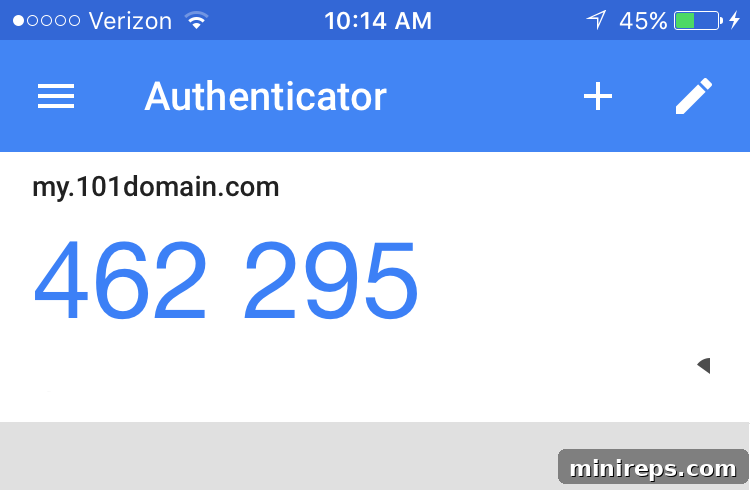
A unique, time-sensitive code generated in a 2-Factor Authentication app, ready for account verification.
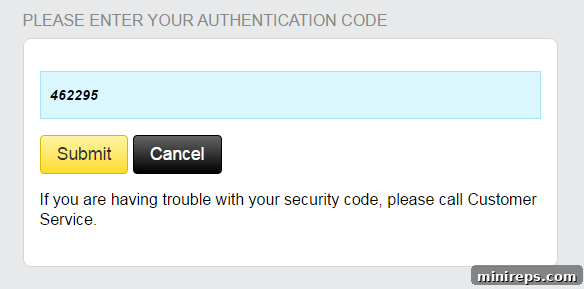
The additional security step at my.101domain.com, requiring the 2FA code after password entry.
The implementation of 2FA ensures that no one can gain unauthorized access to your account without successfully providing both the correct password and the dynamically generated security code from your trusted device. This dramatically elevates your account’s security posture, providing peace of mind in an increasingly risky digital world.
Why 2FA is Non-Negotiable for Your Online Security
In today’s digital age, enabling 2FA isn’t just a recommendation; it’s a fundamental necessity for anyone serious about protecting their online identity and assets. Here’s why:
- Fortified Protection Against Cyber Threats: Passwords alone are often the weakest link in online security. Phishing scams trick users into revealing credentials, while credential stuffing attacks use stolen username/password combinations from one breach to try accessing accounts on other sites. 2FA acts as a powerful deterrent against these tactics. Even if an attacker obtains your password, they can’t log in without the second factor.
- Safeguarding Sensitive Information: Your 101domain account manages critical digital assets – your domain names. These are not just website addresses; they are your online brand, your digital real estate. Unauthorized access to your domain management account could lead to domain hijacking, website downtime, or redirection to malicious sites, causing significant financial and reputational damage. 2FA is crucial for protecting these invaluable assets.
- Peace of Mind: Knowing that your accounts are protected by a robust, multi-layered security system brings unparalleled peace of mind. You can conduct your online activities, manage your domains, and handle sensitive information with greater confidence, free from the constant worry of potential breaches.
- Industry Best Practice: 2FA is widely recognized as an industry standard for strong account security. Major tech companies and security experts advocate for its use across all critical online services. By enabling it, you align yourself with the highest standards of digital self-protection.
The 101domain Advantage: Securing Your Digital Assets with 2FA
At 101domain, the security of your digital assets is paramount. We understand the critical importance of protecting your domain names and other services, which is why we provide robust tools like Two-Factor Authentication to empower you to secure your accounts effectively. Implementing 2FA on your 101domain account is a proactive step that significantly enhances your overall digital security, ensuring that only you have control over your valuable online properties.
Step-by-Step Guide: Enabling Two-Factor Authentication on Your 101domain Account
Activating 2FA on your 101domain account is a straightforward process designed to be user-friendly. By following these steps, you can quickly bolster your account’s defenses:
1. Log In to Your Account
Begin by logging into your account at my.101domain.com. Use your existing username and password to gain initial access to your control panel. This is your gateway to managing all aspects of your domains and services.
2. Navigate to Account Settings
Once you are successfully logged in, locate your name in the top right corner of the dashboard. Click on the drop-down menu associated with your name. From the options presented, select My Account. This section serves as your central hub for managing personal details, billing information, and, importantly, security settings.
3. Locate the Two Factor Authentication Section
Within the ‘My Account’ area, you will find various tabs or sections. Look for the ‘Security’ category or a direct link labeled Two Factor Authentication. Clicking on this option will take you to the dedicated page where you can manage your 2FA settings. This is where the magic happens to add that extra layer of protection.
4. Follow the Setup Steps and Scan QR Code
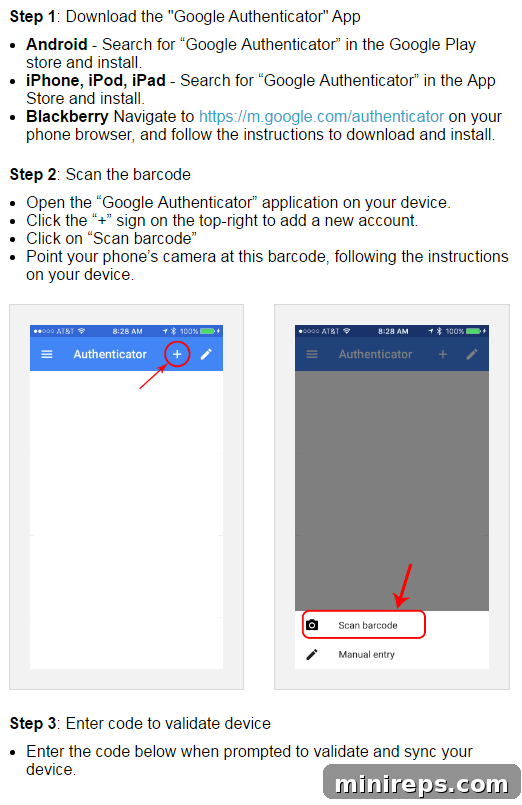
On the Two Factor Authentication page, you will be presented with a series of guided steps to set up 2FA. This typically involves using an authenticator app on your smartphone (such as Google Authenticator, Authy, or Microsoft Authenticator). The process usually includes:
- Downloading an Authenticator App: If you don’t already have one, download a trusted authenticator app from your device’s app store.
- Scanning a QR Code: The 101domain system will display a unique QR code. Open your authenticator app and use its scanning function to capture this QR code. This links your 101domain account to the authenticator app on your device. Alternatively, a secret key might be provided that you can manually enter into the app.
- Entering the Verification Code: Once linked, your authenticator app will immediately start generating 6-digit verification codes that change every 30 seconds. You will be prompted to enter the current code from your app into the 101domain setup screen to verify the connection.
5. Save Your Recovery Codes
This is a critical and often overlooked step! After successfully setting up 2FA, the system will provide you with a set of unique recovery codes (also known as backup codes). These codes are your lifeline if you ever lose your phone, it gets stolen, or your authenticator app becomes inaccessible. Each recovery code can be used once to log in if you cannot provide a 2FA code. Store these codes in a very secure, offline location – perhaps printed out and kept in a safe, or encrypted and stored on an external drive. Do NOT store them on the same device where your authenticator app resides or in an easily accessible cloud storage.
Once these steps are completed, Two-Factor Authentication will be successfully enabled on your 101domain account, providing you with significantly enhanced security.
Managing Your 2FA: Adding Multiple Devices and Users
The flexibility of 2FA extends beyond just a single device. Yes, it is entirely possible and often recommended to have more than one 2 Factor Authentication credential associated with a single account. This offers an excellent backup solution should your primary device be unavailable.
Every time you revisit the 2 Factor Authentication setup screen within your 101domain account, you have the option to add another device. As long as you can log in to your account and scan your personalized account barcode (QR code) with a new device’s authenticator app, you can keep adding as many devices as you would like. This means you could have your phone, a tablet, or even a spare phone configured to generate 2FA codes for your 101domain account.
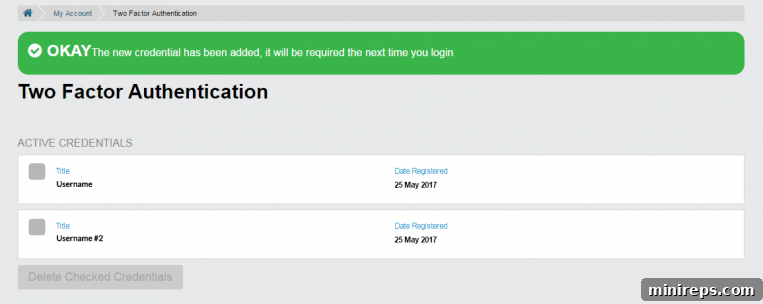
To do this, simply follow the same steps outlined above for initial setup on each new device you wish to link. The system will guide you through connecting additional authenticators. Once you have successfully added multiple users or devices, you will see a confirmation message, and you can manage these linked authenticators at any time from the Two Factor Authentication section of your account.
Troubleshooting and Best Practices for 2FA
While 2FA is incredibly effective, understanding a few best practices and troubleshooting tips can ensure a smooth and secure experience:
- What if I lose my device or it gets stolen? This is precisely why saving your recovery codes is paramount. Use one of your securely stored recovery codes to log in and then immediately revoke access for the lost device and set up 2FA on a new device. If you don’t have recovery codes, you will need to contact 101domain support for account recovery, which can be a more involved process.
- My 2FA codes aren’t working. What should I do? The most common reason for this is an incorrect time synchronization between your phone and the authentication servers. Ensure your smartphone’s date and time are set to “automatic” or “network-provided” in your device’s settings. Incorrect time can cause the TOTP codes to be out of sync and invalid.
- Use a Reliable Authenticator App: Opt for well-known and reputable authenticator apps like Google Authenticator, Microsoft Authenticator, or Authy. These apps are regularly updated for security and compatibility.
- Enable 2FA Everywhere: Extend the protection of 2FA beyond just your 101domain account. Enable it on your email, social media, banking, and any other critical online services. Consistency in security practices is key.
- Regularly Review Security Settings: Periodically check your 2FA settings within your 101domain account to ensure all linked devices are still active and authorized. Remove any devices you no longer use or recognize.
Conclusion: Embrace the Future of Online Security
In an era where digital threats are constantly evolving, relying solely on passwords is a gamble you cannot afford to take, especially when it comes to managing vital assets like your domain names. Two-Factor Authentication is not just an added feature; it is an indispensable component of a robust online security strategy.
By transforming your personal device into a powerful second layer of defense, 2FA significantly hardens your accounts against unauthorized access, offering unparalleled protection and invaluable peace of mind. The steps to enable it on your 101domain account are straightforward, and the benefits are immeasurable.
Don’t wait for a security incident to realize the importance of 2FA. Take control of your digital security today. Enable Two-Factor Authentication on your 101domain account and embrace a safer, more secure online experience. Your digital future depends on it.