


At 101domain, our core philosophy revolves around continuously enhancing your experience across all facets of your domain management journey. This unwavering commitment drives us to refine every detail, from the intuitive tools you use to manage your digital assets to the clarity and efficiency of our direct communications. Today, we are thrilled to announce a strategic, albeit subtle, evolution in how we connect with you: a significant update to our automated email notifications. This refinement is meticulously designed to declutter your inbox, minimize noise, and ensure that the most critical information regarding your domains and services is immediately recognizable and easily accessible, fostering a more streamlined and productive digital environment for all our valued customers.
Mark your calendars: beginning January 19, 2026, 101domain will formally remove the “101domain:” prefix from the subject lines of all automated emails sent to you. This targeted change is a vital step towards modernizing our communication and aligning it with best practices for digital messaging.
The strategic intent behind this update is multi-faceted: primarily, to make our email subject lines cleaner, shorter, and considerably easier to read. In today’s fast-paced digital landscape, particularly for users accessing their inboxes on mobile devices where screen real estate is a precious commodity, brevity and immediate clarity are paramount. By eliminating repetitive prefixes, we empower you to quickly grasp the essence of an email’s content without unnecessary scrolling or parsing. Whether you’re receiving a crucial domain renewal reminder, a confirmation for a new service purchase, a vital security alert, or a request for essential documents, our aim is to ensure that the fundamental information you need for prompt action and efficient domain management is never obscured, allowing you to focus on what truly matters.
Urgent Action Required: Proactively Update Your Email Rules and Filters
While this enhancement promises a more streamlined inbox experience, it carries a crucial implication for users who meticulously organize their emails using automated rules. If you have established specific folders, rules, or filters within popular email clients like Outlook, Gmail, Apple Mail, or even custom mail applications, and these rules are configured to explicitly search for the text “101domain:” in the subject line, these established sorting mechanisms will cease to function correctly once our change goes into effect on January 19, 2026. Failing to update these rules could lead to important notifications being misfiled, sent to spam, or simply overlooked in your primary inbox.
To ensure a seamless transition and continuous organization of your vital 101domain communications, we strongly recommend reviewing and updating your email settings well in advance of the effective date. Instead of relying on specific subject line patterns, which can be subject to occasional updates or changes, we advise you to modify your existing rules—or create new ones—to sort and filter mail by the sender address. This method offers a significantly more robust, reliable, and future-proof approach to email management, guaranteeing that all essential alerts, invoices, confirmations, and support responses consistently land exactly where you want them, regardless of any future subject line refinements or content adjustments.
To assist you in configuring these essential updates, please ensure you whitelist or create filters that specifically recognize the following official 101domain sender addresses:
- [email protected]: This address is used for all automated system notifications, critical account alerts, domain renewal reminders, and general service updates.
- [email protected]: Communications from our support team, responses to general inquiries, and informational updates will typically originate from this address.
- [email protected]: For specific corporate announcements, high-level account management details, or specialized service communications.
By proactively adjusting your email rules to filter based on these trusted sender addresses, you establish a resilient system that ensures uninterrupted delivery and proper organization of all critical information from 101domain, safeguarding your domain portfolio and business operations.
Pro Tip: Revolutionize Your Inbox Organization with Google Workspace and Gmail Labels
On the topic of superior organization, it’s worth noting that a vast number of our clients, ranging from burgeoning startups to established enterprises, have chosen Google Workspace as the foundational platform for their business communications and collaborative productivity. One of the most compelling reasons behind this widespread adoption—and why millions of businesses worldwide place their trust in it—is the unparalleled sophistication and flexibility with which Gmail handles email organization. It transcends the limitations of traditional email folder systems, offering a dynamic and far more powerful approach to managing your digital correspondence.
Unlike conventional email clients that often impose a restrictive structure, forcing you to file messages into a single, isolated folder, Gmail ingeniously employs Labels. This innovative feature fundamentally transforms how you categorize, cross-reference, and retrieve your emails, providing a significantly more versatile and intuitive method for comprehensive inbox management.
To fully appreciate this advantage, let’s highlight the fundamental distinction between Labels and traditional Folders:
- Traditional Folders: Imagine your email inbox as a physical filing cabinet. Each email can only be placed into one specific drawer (folder). Once an email is moved to a folder, it is typically removed from your primary inbox view. This singular placement can make it challenging if an email pertains to multiple projects, departments, or categories. Finding an email later often requires remembering its exact folder, limiting its discoverability if your organizational logic changes or if it overlaps various contexts.
- Gmail Labels: In contrast, think of Gmail labels as highly flexible, virtual tags that you can effortlessly apply to any email. The transformative benefit here is the ability to apply as many relevant labels as needed to a single email. For example, an email from 101domain concerning a recent domain registration might simultaneously carry labels such as “Registrations,” “101domain,” “Invoices – Q1 2026,” and “Urgent Action.” This means the email is not physically moved; it remains accessible from your inbox (unless you choose to archive it) but can also be instantly retrieved by clicking on any of its assigned labels in your Gmail sidebar, or by simply searching for any of those labels. This multi-faceted tagging system ensures that an email can be part of numerous organizational categories simultaneously, reflecting the interconnected nature of modern business communications and dramatically improving accessibility and searchability.
This flexible labeling paradigm empowers you to construct a highly personalized, efficient, and interconnected inbox workflow, ensuring that no important email ever gets lost in the digital clutter and that all related communications are consistently easy to locate, regardless of how many categories they span.
How to Automate Your Inbox for 101domain Emails with Gmail Filters
For those who rely on Gmail as their primary email client, setting up an automated system to manage your 101domain emails is a straightforward process that will significantly enhance your inbox organization, especially with our upcoming subject line adjustment. By following these easy steps, you can ensure that all communications from 101domain are automatically labeled, sorted, and prioritized exactly to your preferences, helping you maintain a pristine and highly efficient inbox.
- Open an Automated Email from 101domain: To begin, locate and open any recent automated email you have received from us. This initial step is crucial because it will automatically pre-populate the filter creation fields with the correct sender information, thereby simplifying the process and minimizing the chance of errors.
- Access the Filter Options: Once the email is open, navigate to the top-right corner of the message window. Here, you will find and need to click on the three vertical dots (often referred to as the “More” menu icon). This action will reveal a dropdown menu containing various options for managing the specific email.
- Initiate Filter Creation: From the dropdown menu that appears, select the option clearly labeled “Filter messages like these.” This selection will immediately open a new dialog box, and you will notice that the “From” field is already automatically populated with the sender’s email address (e.g., `[email protected]`).
- Verify Sender Information and Create Filter: It is imperative at this stage to carefully verify that the sender information displayed in the “From” field is accurate and matches one of the official 101domain sender addresses we previously provided. This ensures your filter will catch the correct emails. Once confirmed, click the “Create filter” button located in the bottom-right portion of the dialog box. This action transitions you to the next screen, where you will define the specific actions Gmail should perform for emails that match this newly configured filter.
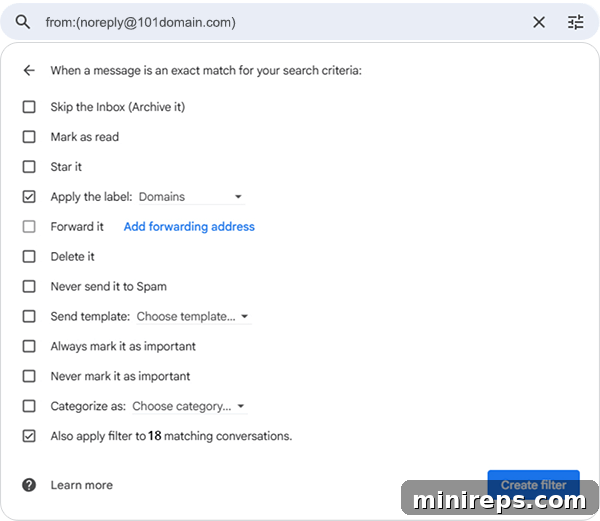
- Define Your Filter Actions: This is the customization phase where you specify precisely how Gmail will handle emails from 101domain. You have the flexibility to choose one or multiple actions to create an optimal workflow:
- Apply the Label: This is a fundamental step for effective organization. Check this box, and then either select an existing label from your predefined list (such as “Invoices,” “Domain Renewals,” “Important Correspondence”) or create a brand new one (for example, “101domain Communications”). This action will instantly tag all incoming emails and matching historical emails, making them effortlessly retrievable under that specific label within your Gmail interface.
- (Optional) Skip the Inbox (Archive it): If your goal is a truly minimalist primary inbox, where only emails requiring immediate attention remain visible, consider checking this box. By selecting this option, incoming emails matching the filter will bypass your primary inbox entirely and go directly to the assigned label. This effectively mimics the “Move to Folder” behavior found in traditional email clients like Outlook, allowing you to maintain an uncluttered inbox focused solely on actionable items.
- Also Apply Filter to Matching Conversations: This is a critically important step! It is highly recommended to ensure you check this box. By doing so, your newly created filter will not only apply to all future incoming emails but will also retroactively scan and apply the defined actions to all existing emails currently residing in your inbox or other folders that match the filter criteria (i.e., those from the specified 101domain sender). This powerful feature saves you the laborious task of manually organizing past communications and guarantees that your entire history of 101domain emails is consistently labeled and perfectly organized from day one.
- Finalize Your Filter: After carefully selecting all your desired actions and confirming your preferences, click the “Create filter” button to save your new rule. Your Gmail inbox will now intelligently and automatically sort and label all 101domain emails according to your precise specifications, providing you with an automated, highly organized, and stress-free communication system.
Unlock Enhanced Productivity: Upgrade Your Business Email with Google Workspace

Beyond simply an organized email inbox, Google Workspace offers a complete and integrated ecosystem meticulously engineered to power modern businesses and elevate their operational efficiency. If your organization has not yet made the strategic transition to Google Workspace, you could be missing out on a comprehensive suite of tools that are transforming collaboration and productivity for millions globally. Experience robust, enterprise-grade secure cloud storage with Google Drive, ensuring your critical files are perpetually safe, effortlessly accessible from anywhere, and easily shareable. Achieve unparalleled real-time document collaboration across Google Docs, Sheets, and Slides, revolutionizing teamwork and streamlining project workflows. Host professional, crystal-clear, and seamless video meetings with Google Meet, connecting your team, partners, and clients globally with ease and reliability. Furthermore, harness the groundbreaking, transformative power of Gemini AI, now seamlessly integrated across the entire Workspace suite to supercharge your productivity, ignite creativity, and provide intelligent assistance. It is profoundly more than just an email service; it is a holistic, intelligent platform designed for sustainable business growth and competitive advantage.
This thoughtful adjustment to our email subject lines underscores 101domain’s unwavering dedication to continuously optimizing your user experience. By proactively adapting your email rules and embracing modern inbox management strategies now, you can ensure seamless communication flow and maintain absolute control over your critical domain management tasks. We strongly encourage you to leverage these contemporary best practices to keep your inbox meticulously streamlined and your business operations functioning at peak efficiency. Should you have any questions regarding this upcoming update or require personalized assistance with configuring your email settings, our dedicated support team is always readily available and eager to help guide you through the process.