


In today’s interconnected world, effective virtual communication is more critical than ever. Google Meet, an integral part of Google Workspace, stands as a robust solution for secure and efficient video conferencing for teams and businesses of all sizes. Recognizing the evolving needs of its diverse user base, Google consistently refines its applications to deliver an unparalleled user experience. In May 2021, Google rolled out significant updates to the Google Meet interface, with further enhancements continuing through June 2021. These changes were meticulously designed to streamline the user experience, making features and settings more intuitive and accessible, ultimately boosting productivity and fostering stronger connections across remote and hybrid teams worldwide.
This comprehensive guide will take you on an in-depth tour of the new Google Meet interface updates, exploring how these thoughtful redesigns are empowering users to conduct more productive, engaging, and seamless online meetings. From revamped control layouts to intelligent self-view options, every aspect has been reconsidered to enhance your virtual collaboration.
Understanding the Key Enhancements in the New Google Meet Interface
Driven by invaluable user feedback and a commitment to simplifying the video meeting experience, Google has meticulously refined the controls and visual layout of Google Meet. The primary areas of improvement in this latest interface update focus on four critical aspects:

Enhanced Controls

Optimized Presenting

Dynamic Self-View

Refined Participant Tiles
1. Streamlined Meeting Controls: Everything in One Place
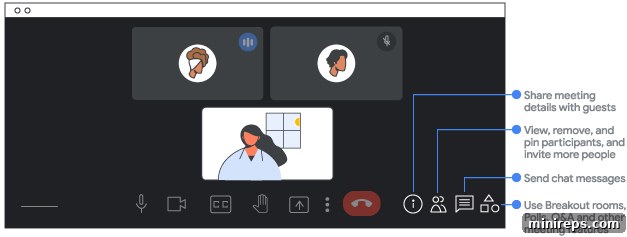
One of the most significant and user-friendly changes in the new Google Meet interface is the consolidation of all essential meeting controls into a single, always-visible bottom bar. This intuitive design choice addresses a common pain point in video conferencing: searching for controls amidst a cluttered screen. By unifying the controls, Google Meet now offers a cleaner, less distracting interface, providing ample space for video feeds of participants and shared content.
The benefits of this consolidated control bar are immediate and substantial. Users can now effortlessly locate options such as microphone muting, camera toggling, screen sharing, and chat functionalities without diverting their attention from the meeting. This enhancement significantly improves the flow of conversations and presentations, allowing participants to interact more naturally and efficiently. Furthermore, a particularly welcome change is the strategic relocation of the “leave meeting” button to the far right of the bar, distinctly separated from the microphone and camera controls. This thoughtful placement drastically reduces the risk of accidental disconnections, a common frustration that can disrupt meeting momentum. This simple yet impactful redesign reflects Google’s commitment to creating a highly functional and frustration-free virtual meeting environment.

2. Optimized Presenting: Engaging Your Audience and Yourself
Presenting during a video meeting often presents a dual challenge: focusing on your content while also keeping an eye on your audience to gauge their reactions. The new Google Meet interface intelligently addresses this by allowing presenters to view both their presentation and other participants simultaneously. This critical enhancement means you no longer have to sacrifice audience engagement for content focus, leading to more dynamic and responsive presentations.
When you move your cursor over your presentation feed within the Google Meet interface, a set of convenient options appears, giving you granular control over your shared content:
- Unpin Your Presentation: This option allows you to move your presentation from its dominant display to a smaller tile, effectively giving more screen real estate to participant videos. This is particularly useful when you want to shift focus from content to discussion.
- Mute or Unmute Audio: If your presentation includes audio, you can now easily mute or unmute it directly from the presentation feed, ensuring smooth transitions and preventing unexpected sounds.
- Remove Your Presentation: Conclude your sharing session cleanly and efficiently by removing your presentation from the meeting with a single click.
These features empower presenters to maintain better control, adapt to audience needs in real-time, and ensure a seamless, professional presentation experience. The ability to see both your content and your audience simultaneously transforms presentations from a one-way delivery to a more interactive and engaging exchange.
3. Dynamic Self-View: Tailoring Your Meeting Perspective
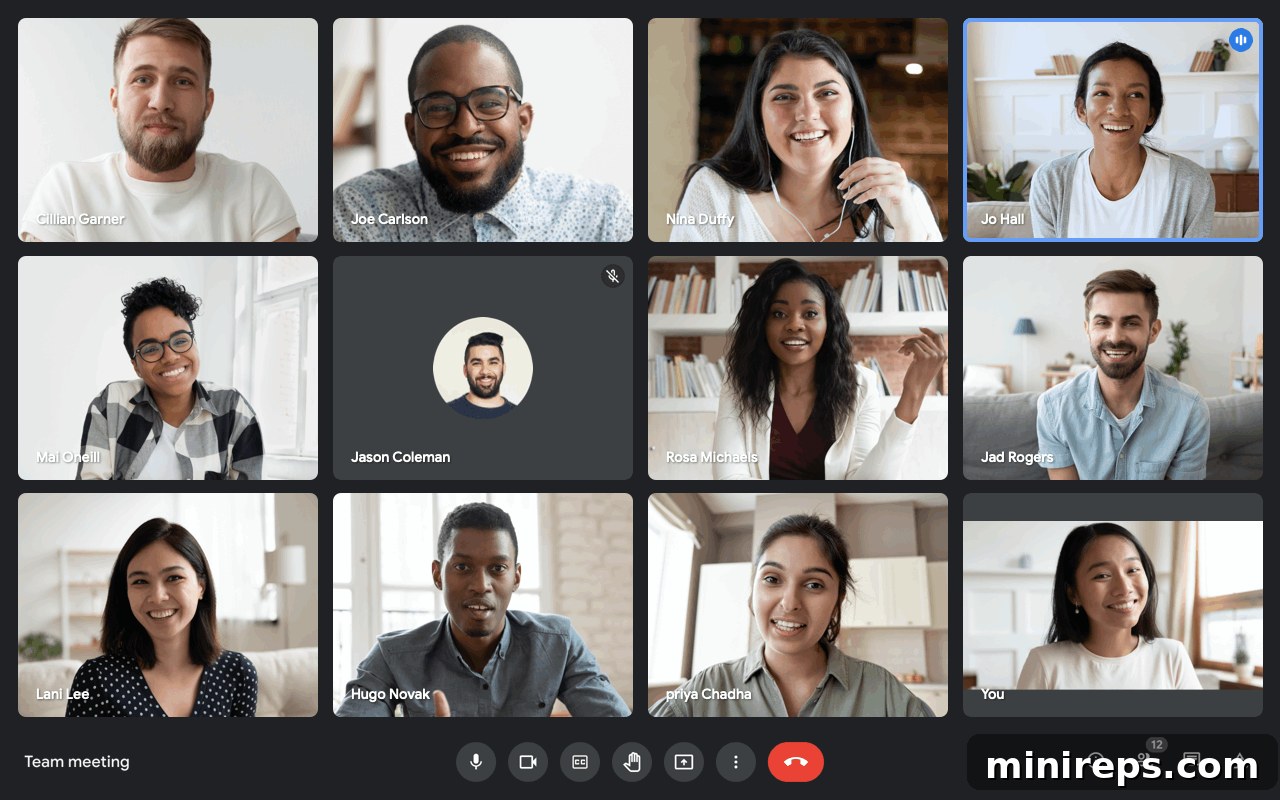
The updated Google Meet interface introduces greater flexibility and personalization for your self-view, ensuring that your own video feed never obstructs your view of other participants or critical content. Previously, in one-on-one meetings, your self-view would appear side-by-side with the other participant. Now, to optimize screen space and provide a more natural feel, your self-view appears as a floating picture, subtly placed next to the other participant’s video.
This dynamic self-view intelligently adapts to the meeting’s context. Should additional participants join or a presentation commence, your self-view will seamlessly transition and be automatically integrated into the main grid layout. This ensures that you always have an optimal view of the meeting. Crucially, you retain control over this experience; you can easily switch between the floating picture and the grid view based on your preference. Google Meet even remembers your selection for future meetings, providing a consistent and personalized experience.
Here’s how you can customize your self-view for maximum comfort and utility:
- Customization on Hover: Simply move your cursor over your self-view to reveal options to pin or unpin yourself, toggle between a floating picture and a tile view, or even minimize your video feed from your screen entirely. Remember that minimizing your video feed only affects your personal view; others will still see your video.
- Resizing and Repositioning: For even greater control, you can drag the corners of your self-view to adjust its size, or reposition it to any of the four corners of your meeting window. This allows you to place your self-view precisely where it’s least intrusive and most comfortable for you.
- Understanding Display Nuances: If you observe gray bars at the top and bottom of your floating self-view, this indicates a difference in the aspect ratio between your camera’s video feed and the floating picture overlay. While you might see these bars, other participants will typically see a cropped version of your video feed without the gray bars, ensuring a clean view for everyone else.
These self-view enhancements are designed to give users unprecedented control over their personal meeting environment, fostering a more comfortable and less distracting virtual presence.
4. Refined Participant Tiles: Enhancing Visual Clarity and Engagement
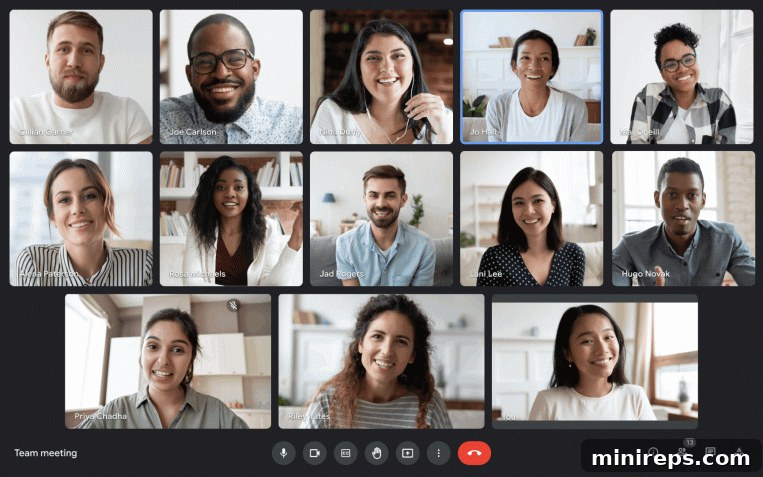
The redesign of participant tiles in Google Meet significantly elevates the overall quality and interactive potential of your video meetings. These improvements focus on creating a more organized, visually appealing, and informative display of attendees, directly contributing to more engaging and effective virtual collaboration. Here’s how these enhancements improve the tile view:
- Reducing Visual Noise: The new design minimizes unnecessary visual distractions, allowing you to focus more clearly on the faces and reactions of your colleagues. This leads to a less fatiguing and more productive meeting environment.
- Optimal Eye-Level Positioning: Participants are now arranged in a way that maximizes the feeling of eye contact when looking into the camera. This fosters a more natural and personal connection between meeting attendees, mirroring in-person interactions more closely.
- Clear Speaking and Muting Indicators: To facilitate seamless communication, the tile of the currently speaking participant is subtly outlined, and a speaker icon appears in the top-right corner of their tile. Similarly, a muted icon is prominently displayed in the top-right corner of a participant’s tile when their microphone is off. These visual cues prevent interruptions and streamline discussions.
- Increased Participant Visibility: For larger meetings, the ability to zoom out in your browser allows you to see more participants simultaneously. This feature is invaluable for moderators and attendees who need a broader overview of the group, enhancing the sense of collective presence in substantial virtual gatherings.
These thoughtful adjustments to participant tiles collectively contribute to a more intuitive and visually comfortable video conferencing experience, ensuring that every attendee can engage effectively without distraction.
Exploring Recent Innovations in the Google Meet Interface
Beyond the core interface redesign, Google Meet continuously rolls out new features and capabilities designed to further empower users and improve meeting dynamics. Here’s a look at some significant updates from May and June 2021:
June 2021: Enhancements for Desktops & Laptops
New Updates to Hand Raise Functionality: The “Hand Raise” feature has been significantly refined to improve structured Q&A sessions and group discussions:
- Prominent Placement for Raised Hands: Participants who raise their hand are now automatically moved to the main grid, making their intention to speak immediately visible to the moderator and other attendees. This ensures that raised hands are not overlooked in larger meetings.
- Automated Reminders to Lower Hand: After a participant has spoken, Google Meet now provides a helpful notification prompting them to lower their hand. This intelligent cue helps keep the “raised hand” list accurate and current.
- Moderator Visibility of Hand Raise Order: Moderators now receive notifications displaying both the order and total number of raised hands. This crucial update enables moderators to manage discussions more effectively, ensuring everyone gets a chance to speak in turn and maintaining order in dynamic conversations.
New Admin Settings for Enhanced Meeting Security: To provide greater control and security for organizations, Google introduced new administrative guidelines concerning meeting access:
Based on your specific Google account type and organizational policies, new guidelines dictate which meetings you can join and who is authorized to join meetings you host. These settings offer administrators powerful tools to manage access, enhance security, and ensure compliance within their organizations. Learn more about joining meetings and managing access here.
May 2021: Productivity & Accessibility Boosts
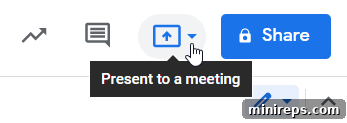
Seamless Presentation from Google Docs, Sheets, or Slides: A major productivity enhancement allows users to present directly to a Google Meet session from within Google Docs, Sheets, or Slides. This eliminates the need to switch applications or share your entire screen, creating a more fluid and focused presentation workflow. It’s a game-changer for collaboration on shared documents.
Clarity on Meeting Code Expiration: Each Google Meet meeting is assigned a unique meeting code. Google has provided clearer guidance on how the expiration time of these codes is determined, which varies based on how the meeting was originally created (e.g., via Google Calendar, Gmail, the Google Meet homepage – meet.google.com, or a shortcut like meet.new). Understanding these expiration policies helps users manage recurring meetings and prevent unauthorized access to old meeting links. You can check detailed expiration information here.
Expanded Language Support for Google Meet Captions: In a significant move towards greater accessibility and global inclusivity, Meet users in North America and Latin America gained access to live captions in several new languages:
- German
- Portuguese (Brazil)
- Spanish (Mexico)
This expansion makes Google Meet more accessible to a wider international audience, enabling participants to follow discussions more easily, especially those with hearing impairments or for whom the meeting language is not their native tongue. Live captions are an invaluable tool for ensuring all participants can engage fully. Learn more about using captions in Google Meet video calls here.
Google Meet: A Core Component of Google Workspace
Google Meet’s continuous evolution underscores its vital role within Google Workspace, a comprehensive suite of cloud-based productivity and collaboration tools. Google Workspace is designed to help individuals, teams, and entire businesses streamline their workflows, enhance communication, and achieve more with fewer distractions. By seamlessly integrating video conferencing with essential tools like Gmail, Calendar, Docs, Sheets, and Slides, Google Workspace provides a unified ecosystem that fosters unparalleled productivity and collaboration, whether you’re working remotely, in a hybrid setup, or from the office.
Experience the power of enhanced virtual collaboration and a truly integrated work environment. Discover how Google Workspace can transform your team’s productivity—try it yourself for free and unlock a new era of efficient work.