


Welcome to the world of enhanced productivity and seamless collaboration! If you’ve recently invested in Google Workspace or are considering making the leap, this comprehensive guide is tailored just for you. We’ll walk you through the essential steps to get started, unlock its powerful features, and truly maximize your Google Workspace experience. At its core, Google Workspace is far more than just an email provider; it’s an integrated, all-in-one suite of communication and collaboration tools specifically designed to empower modern businesses. For anyone familiar with Google’s beloved free applications like Gmail, Drive, or Calendar, you already understand the intuitive design and robust functionality that Google offers. Google Workspace elevates this experience by bringing together all these familiar Google apps into a cohesive ecosystem, delivering advanced features, enhanced security, and significant benefits tailored for professional business environments. This suite streamlines workflows, fosters team synergy, and provides the necessary tools for your business to thrive in today’s dynamic landscape.
Discover the Core Power of Google Workspace: Essential Apps for Business Growth
At the heart of Google Workspace lies a fundamental commitment to fostering exceptional collaboration and communication among teams, regardless of their location. This integrated suite of applications is meticulously engineered to work together, creating a unified platform that drives efficiency and innovation. By understanding and utilizing these key Google apps, your organization can leverage the full potential that makes Google Workspace the undisputed leader in business productivity tools. Each application is designed not just for individual tasks but also for seamless interaction with others, ensuring a fluid and connected workflow. Let’s explore the cornerstone applications that will transform how your team connects, creates, and collaborates.
Gmail: Your Professional Email Solution
Gmail for Google Workspace offers a robust and reliable platform for sending and receiving professional emails using your custom domain (e.g., [email protected]). Beyond just sending messages, it integrates powerfully with other Google apps, providing advanced search capabilities, ample storage, and enterprise-grade security features. Whether you’re at your desk or on the move, you can efficiently manage your inbox, ensuring you stay connected and responsive to critical business communications.
Meet: High-Quality Video Conferencing
Google Meet provides secure and high-definition video meeting capabilities that are essential for today’s hybrid work models. Effortlessly connect with colleagues, clients, and partners, whether they are within or outside your organization, simply by sharing a unique URL. Enjoy features like screen sharing, live captions, and robust security controls, making virtual meetings productive, accessible, and professional from any device.
Calendar: Smart Online Scheduling for Teams
Optimize your team’s schedule and streamline appointment setting with Google Calendar. Its intelligent features allow for quick event creation, smart suggestions for meeting times based on colleagues’ availability, and seamless integration with Meet for video conferencing. Share calendars with your team to enhance visibility, coordinate projects, and spend less time on administrative scheduling tasks, improving overall operational efficiency.
Forms: Easy Surveys and Data Collection
Google Forms offers a user-friendly platform for creating custom surveys, quizzes, and registration forms directly within your web browser. Collect valuable feedback, manage event registrations, conduct internal polls, and analyze responses with powerful built-in tools. Its intuitive interface and real-time data collection capabilities make it an invaluable asset for market research, employee feedback, and customer engagement.
Drive: Centralized Cloud File Storage
Google Drive serves as your secure, centralized online file storage solution, ensuring all your documents, spreadsheets, presentations, and media are accessible from anywhere, on any device. Store, share, and collaborate on files with ease, knowing that they are protected by Google’s robust security infrastructure. With Drive, your team can access the latest versions of files, streamlining workflows and ensuring everyone works from the same source of truth, even when offline.

Chat: Instant Messaging for Seamless Communication
Google Chat facilitates real-time communication within your team, offering both direct messaging and organized chat rooms (Spaces) for project-based collaboration. Share files, assign tasks, and integrate with other Workspace apps without leaving your conversation. Chat enhances team connectivity, allowing for quick decisions, instant feedback, and a more dynamic, responsive work environment, eliminating email clutter for rapid exchanges.
Keep: Collaborative Notes and Reminders
Google Keep is your team’s digital notepad for capturing ideas, creating shared to-do lists, and setting location-based or time-based reminders. Its intuitive interface allows for quick note-taking, image inclusion, and voice memos. Collaborate on notes with team members, ensuring everyone is aligned on tasks and deadlines, and never miss an important detail, all synced across your devices.
Sites: Effortless Website Creation
Google Sites empowers anyone in your organization to build professional and impactful websites without needing any coding or IT assistance. Create internal project hubs, team intranets, or public-facing sites with ease using drag-and-drop functionality and pre-designed templates. Sites is perfect for sharing information, documenting projects, and centralizing resources, fostering transparency and accessibility within your business.
Docs: Real-time Document Collaboration
Google Docs revolutionizes document creation and collaboration by allowing multiple users to work on the same document simultaneously, in real time, directly within their web browser. Track changes, leave comments, and see edits as they happen, ensuring efficient content creation and revision. Docs eliminates version control issues and enhances team productivity for reports, proposals, and any text-based content.
Slides: Dynamic Collaborative Presentations
Google Slides empowers teams to create stunning and engaging presentations together, directly from their web browser. Work collaboratively on slides, incorporate multimedia, and share your vision with powerful visual tools. With Slides, presentations become a collaborative effort, allowing for seamless input from multiple contributors and easy sharing for remote or in-person meetings, enhancing storytelling and impact.

Groups: Streamlined Team Communication & Mailing Lists
Google Groups simplifies communication and resource sharing within your organization. Create mailing lists for departments or projects, enabling you to send updates, announcements, or share files with an entire team using just one email address. Foster online discussions, manage permissions, and build a sense of community, ensuring everyone stays informed and connected efficiently.
Sheets: Powerful Collaborative Spreadsheets
Google Sheets offers a robust and flexible platform for creating and collaborating on spreadsheets directly in your browser. It supports advanced formulas, data visualization, and real-time co-editing, making it ideal for financial tracking, project management, and data analysis. Sheets also boasts excellent compatibility with Microsoft Excel files, ensuring smooth transitions and interoperability for all your data needs.

Cloud Search: Intelligent Enterprise Search
Google Cloud Search is an intelligent search engine that allows you to quickly find company content across all your Google Workspace applications and even third-party data sources. Say goodbye to endless searching for files or emails; Cloud Search provides personalized results based on your work and role, ensuring you find exactly what you need, when you need it, boosting productivity and saving valuable time.

Currents: Engage and Connect Your Organization
Google Currents (now often referred to as Google Chat Spaces for team communication and engagement) facilitates the creation of vibrant online communities within your organization. Connect teams working on specific projects, foster discussions among colleagues with shared interests, and disseminate company-wide announcements. Currents enhances internal communication, knowledge sharing, and employee engagement, building a stronger corporate culture.
Access Google Workspace Apps Anywhere with Your Mobile Devices
The landscape of work has dramatically transformed. In 2024, the modern professional often finds themselves working from various locations – whether it’s the home office, a bustling corporate environment, or while traveling. Google Workspace is meticulously designed to support this flexible, “work-from-anywhere” reality, empowering your team to maintain productivity and connectivity regardless of physical location. The incredible versatility of Google Workspace means you can seamlessly access all the essential applications your organization uses directly from your mobile devices, including smartphones and tablets. This mobility ensures that critical communications, collaborative projects, and important documents are always at your fingertips, keeping your business agile and responsive.
To set up Google Workspace on your mobile device, you’ll simply need:
- Your personal mobile phone or tablet (Android or iOS).
- Your official company or organization email address, such as [email protected].
For detailed, step-by-step instructions on configuring Google Workspace apps for both Android and iOS devices, please click here.

Seamless Access: How to Navigate Your Google Workspace Applications
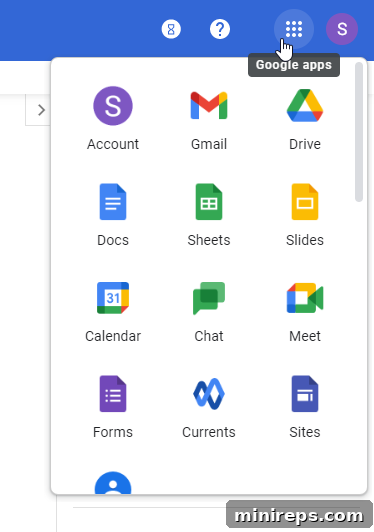
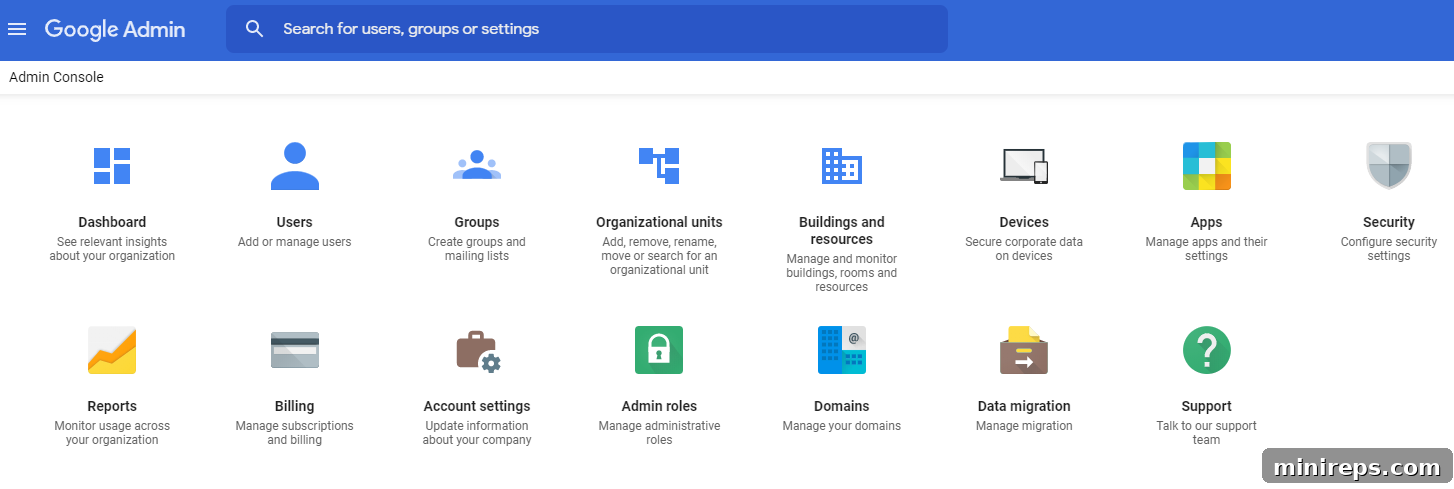
One of the most appealing advantages of Google Workspace is its incredible accessibility – no complex software installations or lengthy downloads are required. This cloud-native approach means you can get started almost instantly, regardless of your operating system. You can effortlessly access your entire suite of Google Workspace applications directly through any standard web browser. For administrators, the powerful Google Admin console, located at admin.google.com, serves as the central hub for managing users, settings, and security policies. Users can find their individual applications by clicking on the familiar navigation icon (often a grid of nine dots) in the top right corner of any Google page.
Beyond browser access, you have several convenient options: you can download dedicated Google apps for your mobile devices for optimized performance and offline capabilities. Alternatively, for lightning-fast creation of new documents, sheets, or presentations, leverage the innovative “.new domain trick” – simply type a specific “.new” URL (e.g., `docs.new`, `sheet.new`) into your browser’s address bar to instantly launch a new blank document with a single click.
Enhance Your Workflow: Setting Up Google Drive for Desktop
To truly integrate Google Workspace into your daily productivity, one of the most critical initial steps is to install Google Drive for desktop. This powerful tool, formerly known as Drive File Stream, acts as a bridge between your cloud-based Google Drive storage and your local computer. Instead of solely relying on your web browser to access files, Google Drive for desktop allows you to stream your entire Google Drive library directly from the cloud to your Mac or PC. This means your files appear like any other folder on your computer, enabling you to open, edit, and save them using your preferred desktop applications (like Microsoft Office or Adobe Creative Suite) without needing to download them first.
The benefits are immense: your team gains quicker access to crucial files, as content can be accessed and edited without consuming local disk space for every file. Since all Drive files are stored and synchronized in the cloud, you are always working with the latest version, eliminating frustrating version control issues. This seamless integration ensures a consistent and efficient workflow, whether you’re connected to the internet or working offline. Get ready to experience unparalleled convenience and productivity by getting started with Google Drive for desktop today.
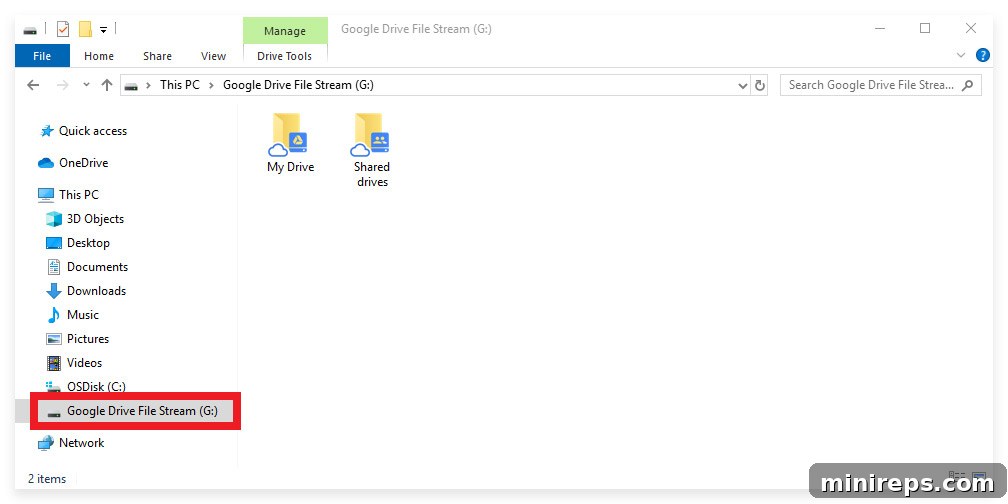
Elevate your file management and collaboration by installing Google Drive for desktop.
Scalability Made Simple: Adding More Users as Your Team Grows
As your business expands and your team grows, Google Workspace is designed to scale effortlessly with your needs. Adding new members to your Google Workspace account is a straightforward process, ensuring that every new employee can immediately tap into the powerful suite of collaboration and communication tools. This process typically involves two key steps: first, updating your subscription to accommodate more user licenses, and second, creating the individual user accounts within the Google Admin console. This ensures that you maintain full control over your organization’s digital environment while seamlessly onboarding new talent.
Part 1: Adjusting Your Google Workspace Subscription
- Begin by logging into your 101domain account, which manages your Google Workspace subscription.
- Navigate to the “Websites, Email & Security” tab, where your product list is displayed.
- Locate and click on your Google Workspace product entry in the list to access its management options.
- Select the “Edit Number of Google Workspace Users” option to initiate the upgrade process.
- Enter the total desired number of users (including existing ones) you’d like your subscription to support and click “Continue.”
- The system will automatically calculate any necessary payment adjustments based on your new user count.
- Proceed to complete the checkout process to finalize the subscription update.
- Once completed, the system will automatically increase the number of allowed user seats for your Google Workspace subscription, preparing your account for new user additions at admin.google.com.
Part 2: Creating New User Accounts in Google Admin
- After your subscription update, navigate to the Google Admin console at admin.google.com to begin adding your new users. A quick note: it may take up to 10 minutes for the system to fully process the changes to your subscription. If you encounter any issues creating new users after this timeframe, please reach out to support for assistance.
- From the Admin console dashboard, click on the “Users” section.
- At the top of the Users page, you’ll find and click the “Add new user” button.
- Enter the essential account information for the new user: their first name, last name, and their primary desired email address (e.g., [email protected]).
- Set a password for the new user. You can choose to have Google automatically generate a strong password, or you can input a custom one. Remember, the minimum password length is 8 characters for security.
- Finally, click “Add new user” to complete the creation of the new account. The user will then receive their login credentials and can begin utilizing Google Workspace.
Empower Your Business: Get Google Workspace Today!
In today’s fast-paced business world, the ability to connect, create, and collaborate seamlessly is paramount for success. Google Workspace provides this foundational strength, offering an integrated suite of tools that allows your business to do more, achieve more, and innovate faster. Move beyond traditional limitations and propel your organization forward with a custom email address that establishes your professional identity, complemented by essential, industry-leading apps like Docs, Calendar, Meet, and Drive. Whether you’re a startup looking for a powerful productivity suite or an established enterprise seeking enhanced collaboration, Google Workspace offers the scalability, security, and intuitive design to meet your evolving needs. Transform your workflow and unlock your team’s full potential.
Experience the difference with a 28-Day Free Trial available now!