

In today’s digital landscape, managing multiple email accounts can quickly become a cumbersome task. Whether you’ve accumulated several Gmail addresses over the years – perhaps one for personal use, another for subscriptions, and a third for professional correspondence – or you’re juggling legacy accounts from providers like Yahoo or AOL, the inefficiency is undeniable. Many users find themselves in a similar boat, seeking a streamlined solution to consolidate their digital communications.
Google Workspace offers an elegant answer to this challenge. It provides a robust, professional platform that unifies your email, calendar, contacts, and other essential business tools under a single, domain-based email address. This shift not only enhances your professional image but also boosts productivity by centralizing all your important communications. If you’re ready to declutter your digital life and bring all your old email accounts, including personal Gmails and other legacy services, into one powerful Google Workspace account, you’ve come to the right place. This comprehensive guide will walk you through the entire process, ensuring a smooth transition and helping you unlock the full potential of a unified communication system.
How to Seamlessly Consolidate Your Old Email Accounts into Google Workspace
Consolidating your diverse email history into a single Google Workspace account is a strategic move for enhanced organization and efficiency. This detailed migration guide is designed to help you transfer not just your emails, but also your crucial calendar events and contact information from existing Gmail accounts or other email providers directly into your new Google Workspace environment. By following these steps, you’ll ensure that no vital communication or historical data is lost during the transition, setting you up for a more professional and productive digital future.
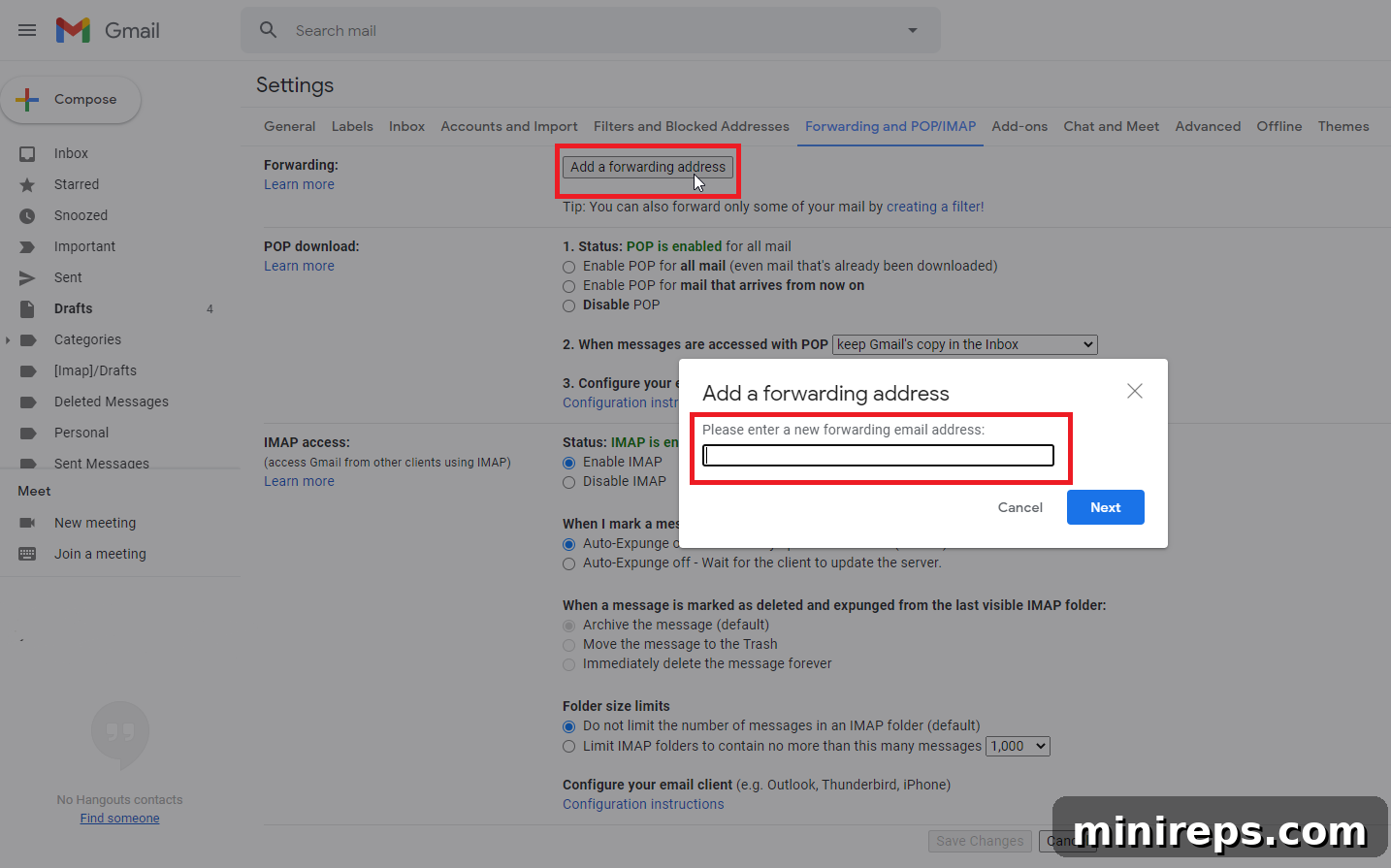
Step 1: Set Up Incoming Email Forwarding
The very first and arguably most critical step in consolidating your email accounts is to ensure uninterrupted communication by setting up forwarding for all incoming mail. This proactive measure prevents you from missing any crucial emails that might be sent to your old accounts while you’re in the process of migration or even after you’ve fully transitioned to Google Workspace. By redirecting new messages to your primary Google Workspace email address, you maintain continuity and peace of mind during the entire consolidation journey.
For @gmail.com or existing Google Workspace accounts:
If your old accounts are @gmail.com addresses or other Google Workspace accounts, setting up forwarding is straightforward. You have the flexibility to forward all new emails to your new Google Workspace address or to create specific filters that only forward certain types of messages. For detailed instructions on how to automatically forward Gmail messages to another account, please refer to Google’s official support guide: Automatically forward Gmail messages.
For other email providers (e.g., Yahoo, Outlook, AOL):
If your previous email accounts are from providers other than Gmail or Google Workspace, the forwarding process will vary slightly. Most major email services offer an option to automatically forward emails. You will typically find these settings under “Mail Settings,” “Forwarding,” or “POP/IMAP” in your account preferences. A quick search using terms like “how to automatically forward emails from Yahoo” or “Outlook auto-forward setup” will provide provider-specific instructions. It’s essential to consult the help documentation for your specific email provider to ensure proper configuration.
Implementing forwarding at this initial stage guarantees that your migration will be smooth and seamless, with no risk of important messages getting lost in an old inbox. Once forwarding is active, you can proceed with the next steps of migrating historical data, knowing that all new communications are already landing in your unified Google Workspace inbox.
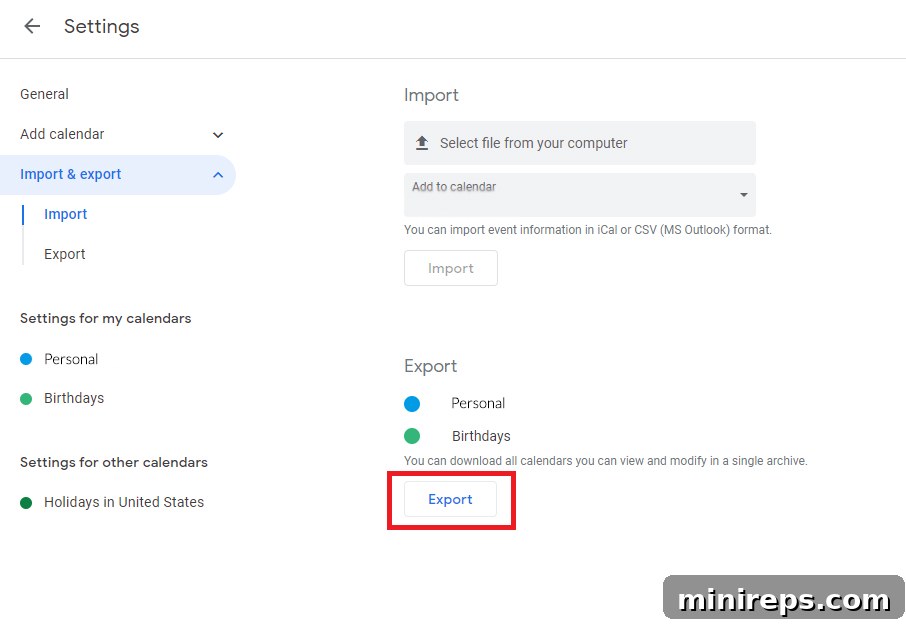
Step 2: Migrate Your Calendars and Contacts
Beyond email, your calendar and contacts are vital components of your digital life. Consolidating them into Google Workspace ensures that your schedule is always current and your network is readily accessible across all your devices and integrated with Google’s powerful ecosystem. This step is crucial for maintaining productivity and collaboration within your new unified environment.
Importing Calendars from your old accounts to Google Calendar:
Google Calendar is a central hub for scheduling, events, and appointments. Transferring your events from various calendar applications or other Google Accounts into your new Google Workspace calendar brings all your commitments into one place. While the import process is robust, it’s important to note a limitation: when importing events, specific details such as guest lists or detailed descriptions might not always transfer perfectly. For critical events with collaborators, you might need to manually re-invite guests or update descriptions post-import.
To export events from your old calendar account and import them into your new Google Calendar, follow the directions provided by Google’s support page: Import events to Google Calendar. This typically involves exporting your old calendar data into a standard file format like iCal (.ics) and then importing it into your Google Calendar settings.
Importing Contacts from your old accounts to Google Contacts:
Your network of contacts – encompassing names, email addresses, phone numbers, and other essential details – is invaluable. Consolidating this information into Google Contacts ensures it’s synchronized across all your devices and readily available whenever you need it. Google Contacts seamlessly integrates with Gmail, Google Meet, and other Workspace applications, making it incredibly convenient to connect with colleagues, clients, and personal acquaintances.
Before importing, it’s a good practice to review and clean up your contact lists in your old accounts to avoid transferring duplicates or outdated information. This preparation can save you time later. For comprehensive instructions on how to import contacts from a file (e.g., CSV or vCard) or directly from your old Gmail account into Google Contacts, please consult the official guide: Import contacts to Google Contacts.
By effectively migrating your calendars and contacts, you establish a strong foundation for a well-organized and highly functional Google Workspace environment, ensuring that your schedule and network are always at your fingertips.
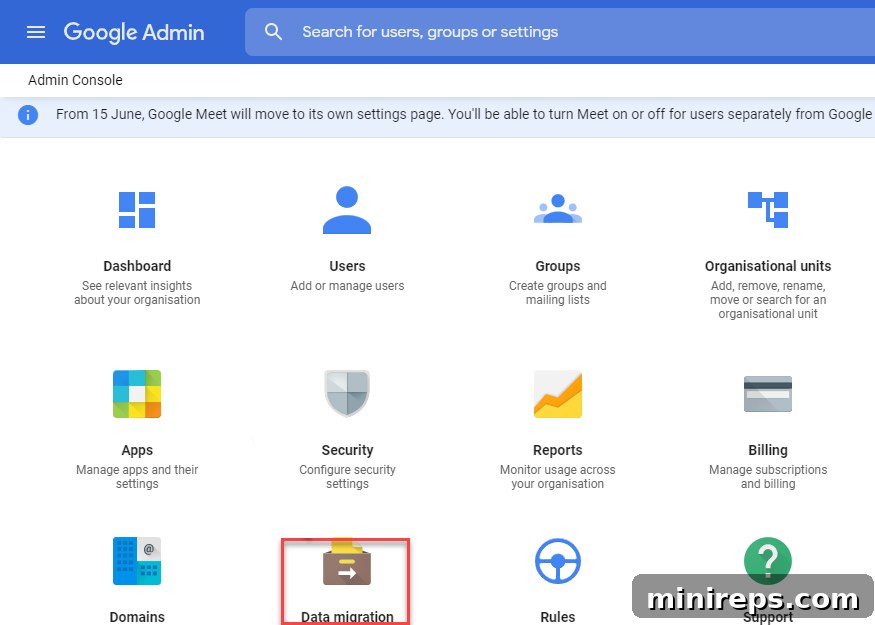
Step 3: Migrate Your Historical Email Data
The final and often most significant step is migrating your existing historical email data into your new Google Workspace inbox. This ensures that all your past communications, archives, and important records are accessible from your new primary account. Google Workspace offers robust tools to make this process incredibly efficient, minimizing manual effort and potential data loss.
Option 1: Migrating via the Google Workspace Data Migration Service (Recommended for Admins)
For a comprehensive and automated approach, especially if you are managing a Google Workspace account with multiple users, the built-in Data Migration Service is highly recommended. This service streamlines the transfer of large volumes of email data from various sources directly into your Google Workspace mailboxes. It’s designed for efficiency and reliability, making it ideal for business environments.
To utilize this service, you must meet certain prerequisites:
- Super Admin Privileges: You must have super admin access in your Google Workspace account. This level of access is necessary to configure and initiate data migrations for users within your domain.
- IMAP Support: Your old email account or server must support the IMAP (Internet Message Access Protocol) protocol. IMAP allows the migration service to access and copy your emails directly from the server, preserving folder structures and email statuses.
- Trusted TLS/SSL Certificate: The IMAP server of your old account should have a trusted TLS/SSL certificate. This ensures that the connection during the migration process is secure and that your data is encrypted, protecting it from unauthorized access.
- Accessibility from Google Services: The IMAP server must be accessible from Google’s services. This means there should be no firewall restrictions or network configurations preventing Google’s migration tools from connecting to your old email server.
For detailed instructions on how to set up and initiate email migration to Google Workspace using the Data Migration Service, please refer to Google’s official documentation: Migrate your email, calendar, and contacts.
Option 2: Migrating on Your Own (for Individual Users)
If you prefer a more hands-on approach or are migrating a personal Gmail account, you can manually migrate your emails to Google Workspace. This method involves configuring settings within your Google Workspace Gmail interface to pull emails from your old account. This process is generally done in two main steps:
- Update Admin Settings to Allow Importing Data:
First, your Google Workspace administrator needs to ensure that the domain settings allow users to import mail from non-Google email providers into their Gmail accounts. This is a crucial administrative setting that enables the functionality for individual users.
For administrators, directions on how to enable or disable this feature can be found here: Turn imports from webmail hosts on or off.
- Set Import Options in Gmail:
Once the administrative setting is confirmed, individual users can configure their Gmail accounts within Google Workspace to import emails. This involves adding your old email account details (email address, password, and potentially server information) into your new Gmail settings.
For user-specific directions on how to set up importing and check emails from other accounts within your Google Workspace Gmail, please go to: Check emails from other accounts.
While manual migration offers more control, it can be more time-consuming for large email archives. Ensure you have all login credentials for your old accounts ready, and be patient as the migration progresses.
Post-Migration Steps and Maximizing Google Workspace Benefits
Successfully consolidating your old email accounts into Google Workspace is a significant achievement that opens up a world of integrated productivity and professional communication. However, the process doesn’t end with the migration of data. A few crucial post-migration steps will ensure a smooth transition and help you fully leverage the capabilities of your new unified environment.
Update Your “Send As” Address and Signatures:
After migrating, it’s essential to configure your Google Workspace Gmail to send emails from your preferred new domain-based address. You may also want to set up an alias if you wish to retain the ability to send from an old Gmail address temporarily. Crucially, update your email signatures across all devices and platforms to reflect your new professional identity. This prevents confusion and ensures brand consistency.
Inform Your Contacts:
Consider sending a brief announcement to your most important contacts, informing them of your new email address. Although forwarding is active, a direct communication helps them update their records and ensures your critical messages continue to land in your primary inbox without delay. For less frequent contacts, the forwarding mechanism will serve as a reliable backup.
Review and Organize Your New Inbox:
With all your old emails, calendars, and contacts now centralized, take the time to review and organize your new Google Workspace inbox. Utilize Gmail’s powerful labels, filters, and search functions to categorize old messages and maintain a clean, efficient workflow going forward. This is an excellent opportunity to declutter and establish new organizational habits.
Explore Beyond Email:
Google Workspace is much more than just email. Dive into other integrated applications like Google Drive for cloud storage and collaboration, Google Docs, Sheets, and Slides for real-time document creation, Google Meet for video conferencing, and Google Chat for team messaging. A unified Google Workspace account provides a complete suite of tools designed to enhance productivity, streamline workflows, and foster collaboration within a single, secure environment.
By following these steps, you will not only consolidate your digital life but also unlock the full potential of Google Workspace, transforming how you communicate and operate, both personally and professionally. Embrace the efficiency, professionalism, and power of a truly integrated platform.