


The digital landscape, while offering unprecedented opportunities, is also fraught with potential pitfalls. We’ve all experienced the gut-wrenching moment when a computer crash erases hours of diligent work. Now, extend that frustration to your entire website – the culmination of countless hours, creative energy, and strategic planning. Imagine losing your invaluable content, customer data, and online presence due to an unforeseen catastrophe. While robust hosting providers, like those offering Plesk hosting, strive for impeccable reliability and uptime, the reality is that no system is entirely immune to disruption.
Recent events, such as the server fire at a major cloud services firm, serve as stark reminders of how quickly disaster can strike, leaving millions of websites offline. While preventing such natural or technical calamities might be beyond your direct control, your preparedness is entirely within your grasp. Proactive website backups are not merely a recommendation; they are an essential lifeline for your digital assets. This comprehensive guide will equip you with the knowledge and steps to securely back up your Plesk-hosted website directly to Google Drive, ensuring peace of mind and business continuity.
The Ultimate Guide to Backing Up Your Plesk Website to Google Drive
Why Website Backups Are Non-Negotiable for Digital Resilience
In the dynamic world of online presence, the question isn’t if something might go wrong, but when. A myriad of threats constantly looms over your website, each capable of causing significant damage or complete data loss. Without a robust backup strategy, you risk losing everything you’ve built online. Here’s a closer look at the critical reasons why website backups are not just good practice, but an absolute necessity:
- Cyber Attacks and Hacking: Websites are constant targets for malicious actors. Whether it’s a brute-force attack, SQL injection, malware infection, or ransomware, a successful hack can deface your site, steal sensitive data, or render it completely inoperable. Backups provide a clean slate to restore your site after an attack.
- Human Error: Accidents happen. An accidental deletion of a critical file, an incorrect configuration change, or an erroneous database command can bring your website down instantly. With a recent backup, you can quickly revert to a working version, minimizing downtime and frustration.
- Faulty Updates and Plugin Conflicts: Websites, especially those built on platforms like WordPress, rely heavily on themes, plugins, and core software updates. While these updates bring new features and security patches, they can also introduce compatibility issues or bugs that break your site. A backup allows you to safely roll back before attempting new updates.
- Server Hardware Failure: Even the most advanced data centers can experience hardware malfunctions or, as seen recently, catastrophic events like fires. If your hosting server fails and data is corrupted or lost, having a remote backup ensures your entire website can be rebuilt on a new server.
- Corrupted Databases: The database is the heart of most dynamic websites, storing all your content, user information, and settings. Database corruption, often due to software glitches or unexpected shutdowns, can render your site inaccessible. Backups include your database, protecting this vital component.
The consequences of website downtime extend far beyond mere inconvenience. For businesses, downtime translates directly into lost revenue, damaged brand reputation, and a significant drop in customer trust. Search engine rankings can also suffer, leading to long-term visibility issues. To safeguard against these severe repercussions, we strongly advocate for storing your website backups in secure remote storage solutions like Google Drive. Backups are your ultimate insurance policy, ensuring that even in the face of the worst-case scenario, your website and all its associated files remain safe, recoverable, and ready for restoration within minutes.

Why Google Drive is Your Ideal Backup Destination
When considering remote storage for your website backups, Google Drive stands out as an exceptionally reliable, accessible, and cost-effective solution. Its robust infrastructure, global reach, and seamless integration with other Google services make it a top choice for individuals and businesses alike. Here are some key advantages:
- Ubiquitous Accessibility: Google Drive allows you to access your backups from virtually any device, anywhere in the world, as long as you have an internet connection. This global accessibility is crucial for rapid disaster recovery.
- Enterprise-Grade Security: Backed by Google’s formidable security infrastructure, your data on Google Drive benefits from advanced encryption, robust authentication protocols, and continuous monitoring, providing a high level of data protection.
- Generous Free Storage: Google offers a substantial amount of free storage (typically 15 GB) with every Google account, which can be sufficient for many smaller websites. Scalable, affordable paid plans are also available for larger sites or multiple backups.
- Reliability and Redundancy: Google’s data centers are designed for extreme reliability and data redundancy, significantly reducing the risk of data loss due to hardware failure compared to local storage solutions.
- Seamless Integration: Google Drive integrates effortlessly with numerous third-party applications and services, including many backup tools, simplifying the process of connecting and managing your website backups.
There are several effective methods to configure Google Drive as your backup storage for your website. These methods are designed for ease of implementation, making digital preparedness accessible to everyone. Your choice will largely depend on your specific hosting environment, such as whether you use Plesk, and your organizational preferences and technical needs.
Method 1: Configuring Google Drive Backup Storage Directly in Plesk
For websites hosted on a Plesk control panel, one of the most straightforward and cost-effective methods for creating backups is leveraging Plesk’s built-in Google Drive integration. This feature is typically available at no additional cost within your Plesk account, making it an excellent choice for immediate implementation. While this method currently supports manual backups and future versions may include automated scheduling, it offers a reliable way to safeguard your website data.
We strongly recommend performing this backup process regularly – ideally every 30 days, or immediately after any significant changes are made to your website, such as publishing new content, installing plugins, or updating themes. Following these detailed steps will guide you through connecting your Plesk account to Google Drive and executing a full website backup.
Although automated scheduled backups are not universally supported for Google Drive integration within Plesk at this time, you can still establish a consistent manual backup routine. Many users set reminders to ensure they capture their website’s state at regular intervals, providing a recent restore point should any issues arise.
Step-by-Step Guide to Configuring Plesk Google Drive Backup:
- Prepare Your Google Account: If you don’t already have one, create a Google Workspace account or a standard Google account that you intend to use for storing your website backups. Ensure you have sufficient storage available or consider upgrading if your website is large.
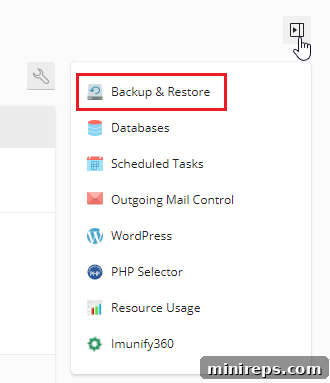
- Access Backup & Restore: Log in to your Plesk control panel. On the right-hand side of your hosting panel (or typically in the main navigation menu), locate and click the “Backup & Restore” option. If the sidebar is not visible, you may need to expand it.
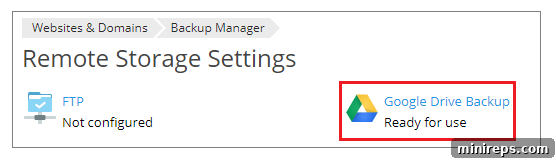
- Navigate to Remote Storage Settings: Within the Backup Manager, select “Remote Storage Settings” to configure where your backups will be stored.
- Choose Google Drive Backup: From the list of available remote storage options, select “Google Drive Backup.”
- Confirm Selection: Click “Ok” to proceed with the Google Drive integration.
- Authenticate Google Account: You will be prompted to sign in to the Google account you wish to use for backup storage. Enter your credentials and follow the on-screen prompts.
- Grant Permissions: A consent screen will appear asking for your permission to allow Plesk to view and manage files in your Google Drive. It is crucial to click “Allow” for the integration to function correctly.
- Finalize Authorization: Click the provided link to securely send the Google Drive authorization data back to Plesk, completing the connection.
- Enable Storage Usage: Ensure the “Use the storage” checkbox is selected to activate Google Drive as your designated remote backup location.
- (Optional) Customize Backup Path: By default, Plesk creates a folder named “My Plesk” in your Google Drive to store backups. If you prefer a different location or a specific subfolder, you can type the desired path into the “Path” textbox.
- Save Configuration: Click “OK” to save all your remote storage settings.
- Perform a Manual Backup: Now that your Google Drive is configured, navigate back to the Backup Manager. Select the “Back Up” option to initiate a manual backup of your hosting subscription. For maximum safety, “Full” backup is highly recommended to ensure all website data, including files, databases, and mail settings, are comprehensively saved. *Note: As mentioned, automatic scheduled backups under the “Schedule” section are not supported for Google Drive integration at this time, so remember to perform this step manually.*
- Verify Your Backup: Once the backup process is complete, you can log in to your Google Drive account. Navigate to the specified path (e.g., “My Plesk” folder or your custom path) to view your freshly created website backup file, confirming its successful storage.

Managing Multiple Google Accounts or Changing Backup Destinations:
Should you decide to use a different Google account for your backups or switch to another remote storage solution, the process is straightforward. Simply go to Tools & Settings > Backup Manager > Remote Storage Settings > Google Drive Backup, and then click the “Log out” link. This action will disconnect the currently linked Google Drive account.
An important distinction to remember is that disconnecting the Google Drive Backup storage does not automatically remove the Plesk backups already stored within that Google Drive account. They will remain securely in your Google Drive. If you reconnect the same or a different Google Drive account at a later date, Plesk will rescan the storage, and you will once again see the stored backups in your Backup Manager, allowing for seamless restoration.
Method 2: Streamlining WordPress Backups with UpdraftPlus Plugin
For those managing a WordPress website hosted on Plesk, leveraging a dedicated WordPress backup plugin offers unparalleled convenience and advanced functionality. Among the myriad of options available, we wholeheartedly recommend UpdraftPlus. This plugin is not just free; it’s the world’s most highly-rated and popular WordPress backup plugin, boasting an impressive user base of over three million active installations. UpdraftPlus empowers you to store your comprehensive website backups directly to Google Drive (and other cloud services) at no additional cost, transforming a potentially complex task into a simple, automated process.
The core appeal of UpdraftPlus lies in its user-friendly interface and robust feature set. Both the free version and the premium paid version allow you to effortlessly back up your entire WordPress site—including files, databases, plugins, and themes—into the cloud, specifically to Google Drive. What truly sets it apart is the one-click restore functionality. In the event of a disaster, you can quickly and easily revert your website to a previous, healthy state with minimal effort, saving invaluable time and mitigating potential damage.
Compared to manual backup methods or more technical approaches, using the UpdraftPlus WordPress plugin is infinitely quicker, more intuitive, and significantly more straightforward. Its stellar reputation is built on thousands of five-star reviews, with users consistently praising its ease of use and the professionalism of its support team. One of the most compelling benefits of UpdraftPlus is its “set it and forget it” capability. You can configure automatic, scheduled backups to run at your desired frequency (daily, weekly, monthly), ensuring your website is always protected with fresh restore points. This automation eliminates the need for manual intervention, freeing up your time and preventing the hassle of remembering to perform backups.
UpdraftPlus also offers features such as incremental backups (in its premium version), which only back up changes since the last full backup, saving storage space and bandwidth. It provides the flexibility to select which components of your website to back up, and crucially, simplifies the migration process if you ever need to move your WordPress site to a new host or domain. With UpdraftPlus, you’re not just getting a backup tool; you’re investing in peace of mind, knowing your digital presence is continuously protected.
Never Underestimate the Power of a Backup: Your Digital Insurance Policy
In the vast and ever-evolving digital landscape, website backups are more than just a technical task—they are an indispensable form of digital insurance. The investment of time and effort you put into creating and maintaining your website is too valuable to leave to chance. Whether you choose to leverage Plesk’s built-in Google Drive integration for a direct approach or opt for the robust automation offered by the UpdraftPlus plugin for your WordPress site, the most critical takeaway remains: do not forget to backup your website.
Regular backups safeguard your content, protect your data, and preserve your online reputation. They empower you with the ability to swiftly recover from unforeseen errors, malicious attacks, or catastrophic server failures, ensuring minimal disruption to your operations and continuity for your users or customers. As the timeless adage wisely states, “it’s better to be safe than sorry.” In the digital realm, “safe” means having a reliable, accessible, and up-to-date backup of your website. Don’t delay; secure your digital future by implementing a comprehensive backup strategy today. Your peace of mind and the resilience of your online presence depend on it.